Board columns and task fields
The two sections that decide what your board looks like and what a task can say.
Columns
Section titled “Columns”Settings → Board. Add a column, rename it, pick its colour, reorder it with the move controls, and give it a role.
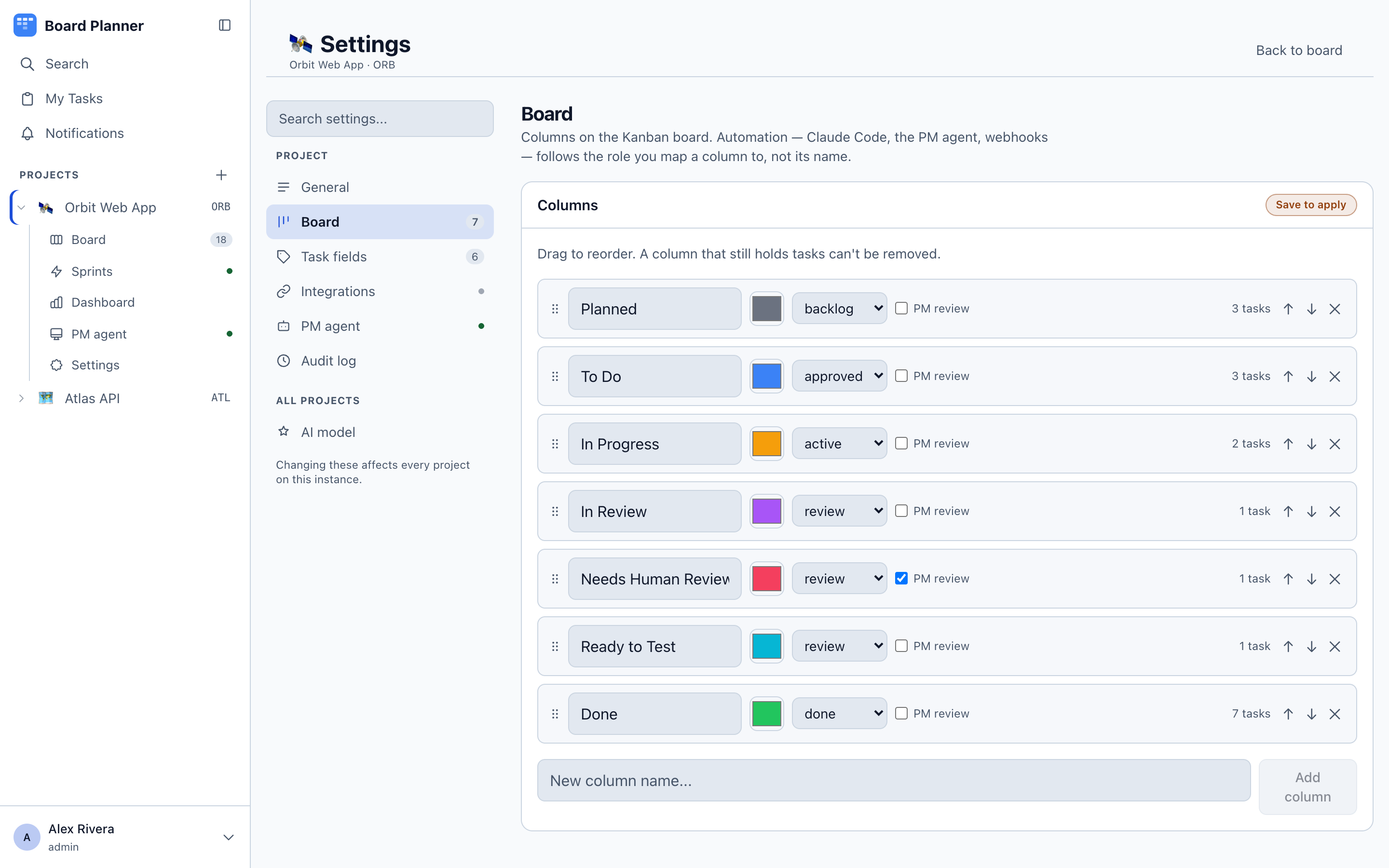
The role is the important part. Automation — workers, the PM agent, agent instructions — keys on the role, never the label, so you can call a column Ready for dev or Shipping and nothing downstream breaks. Each column carries exactly one role, shown in the app under a plainer name:
| Role | Shown as |
|---|---|
backlog |
Ideas & backlog |
approved |
Ready to pick up |
active |
In progress |
review |
Awaiting review |
blocked |
Blocked |
done |
Done |
The escalation column
Section titled “The escalation column”Under Settings → Board → Hand-off to the PM agent you nominate one column — the one that means a human or the PM agent needs to look at this. Only a column with the review role can be chosen, and choosing one clears it from any other.
Two different things land there.
- A worker run that has given up. A run gets three attempts. When they are spent, or its two-hour lease expires with none left, the task is parked in this column instead of going back to the approved queue where a machine would pick it up and fail again.
- A task somebody moves into it. If the project has Review tasks that land in “Needs human review” switched on — see autonomous board reviews — that move queues a PM review of the task. Moving it there is the whole trigger; the PM moving a task itself does not re-trigger.
A new board already has one: the seeded columns nominate Needs Human Review. Set it to — none — if you do not want the hand-off.
The two halves treat no choice made differently, and the difference is deliberate. Parking a failed run is not optional, so with nothing nominated it falls back to the first review column, and to the approved column if the board has none. Queuing a PM review is optional — it costs a turn against the daily cap — so it does nothing at all while the choice is — none —.
Two roles cannot be lost by accident. A save that would leave the board with no done column or no active column is refused — sprint progress and the dashboard’s In Progress count depend on the first, and the dashboard and every worker run on the second. Give another column the role first, then change or remove the old one. A board that already lacks one of them can still save every other change, and Settings → Board says what such a board cannot do until it is repaired.
Categories
Section titled “Categories”Settings → Task fields. Categories are the task types — bug, doc, user-story and idea by default — each with a colour. Rename them, add your own, drop the ones you never use. They are per project.
Custom fields
Section titled “Custom fields”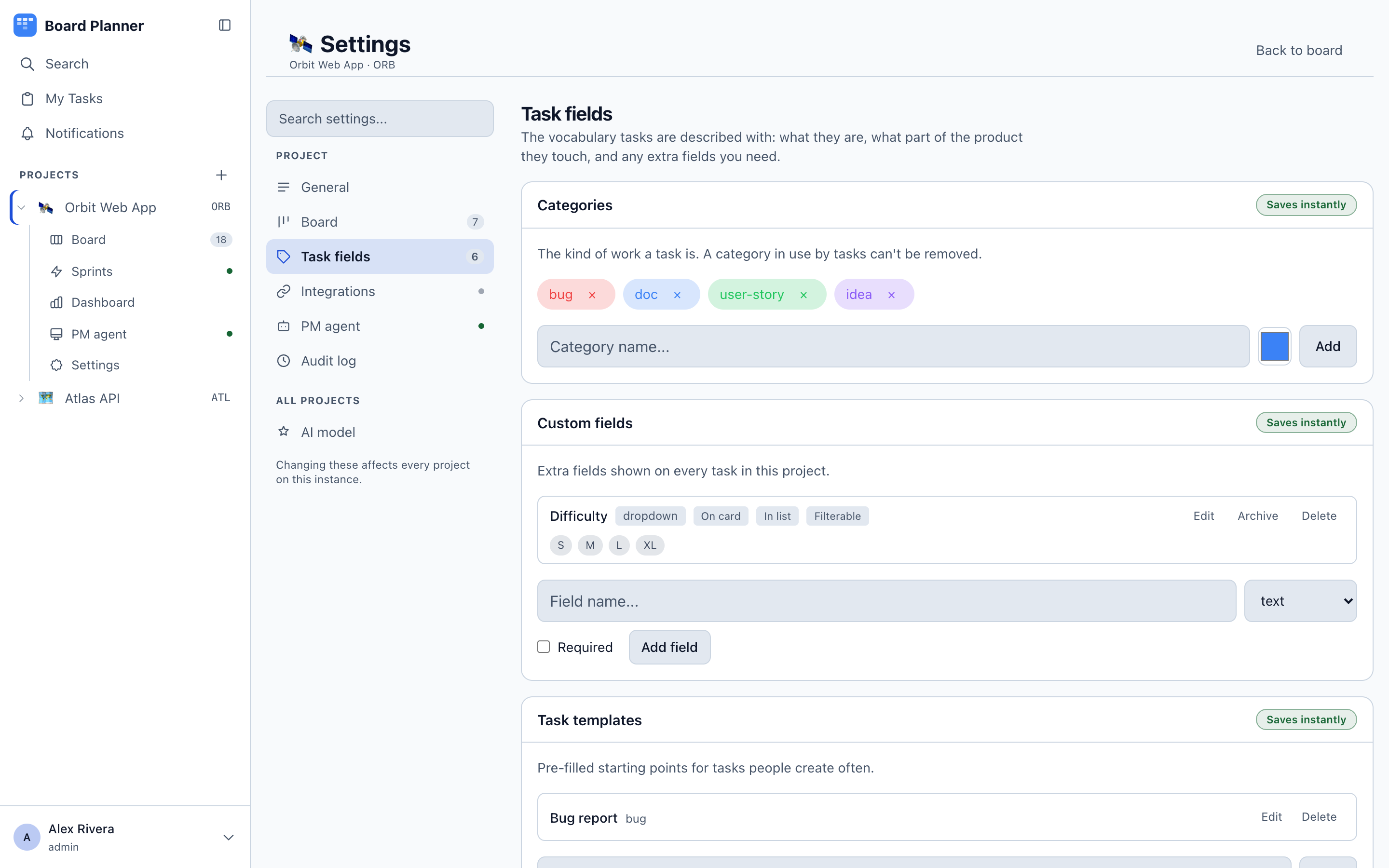
Anything else you want to record on a task. Members add fields, rename them, add and rename options and archive a field; removing an option a field already has — which erases that value from every task holding it — is for a project owner, as deleting a field is.
Each field has a type — Text, Number, Date, Choice, Multi-choice or Yes / no — and three switches that decide where it shows up:
| Switch | Effect |
|---|---|
| On the card | The value appears as a chip on the board card. |
| In the list | The field gets its own column in the list view. |
| Filterable | The field appears as a control in the filter panel. |
Fields can be marked required, reordered, and archived — archiving hides a field from new work without destroying the values already recorded against it.
A Choice field named Difficulty with options S, M, L and XL is worth creating on day one: it drives the dashboard’s difficulty panel, and agents use it to decide whether a task needs a plan before code.
Task templates
Section titled “Task templates”Also under Task fields. A template pre-fills title, description, category and acceptance criteria — the fastest way to make sure every bug report has reproduction steps.