Creating and editing tasks
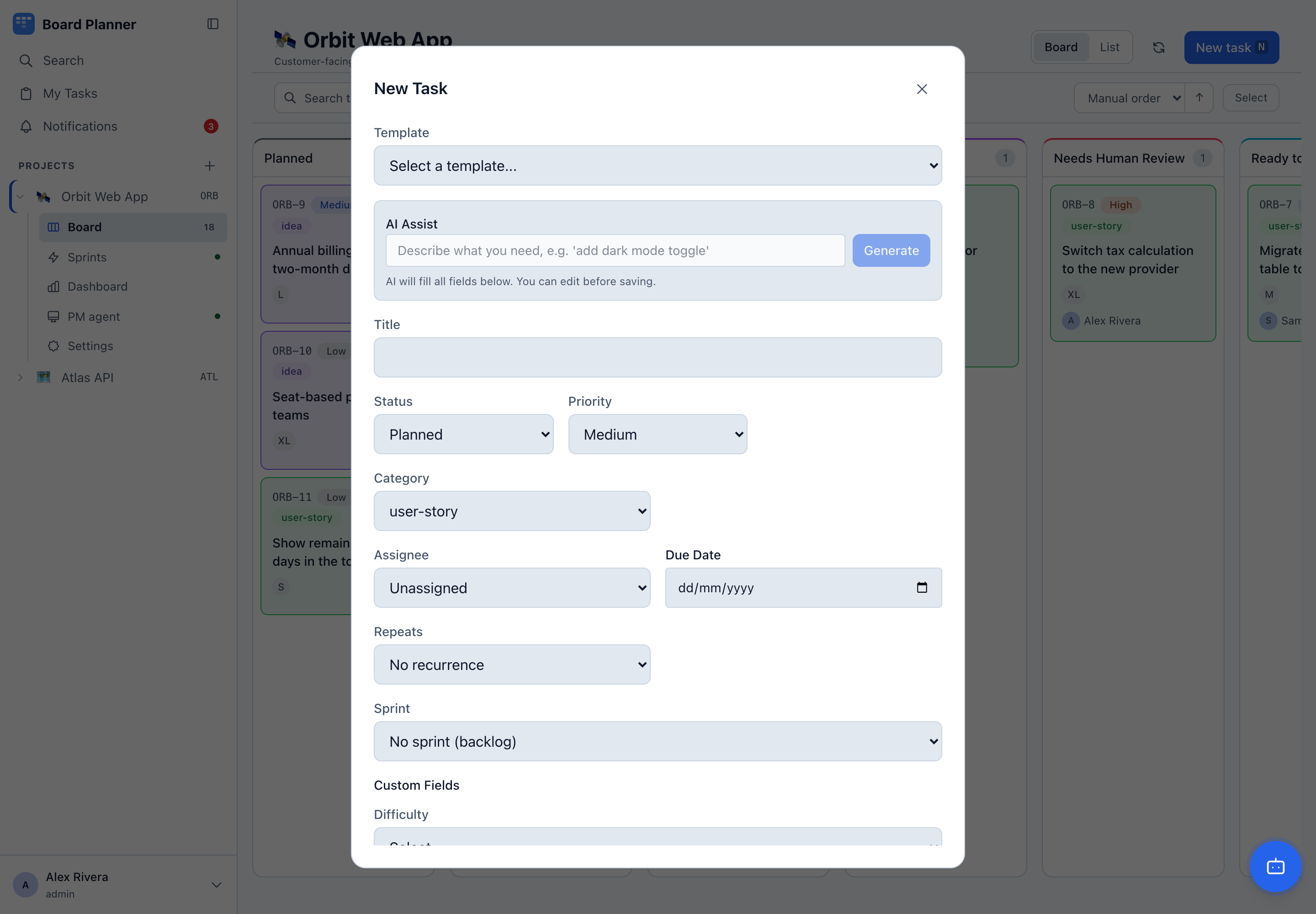
New task on a project board, or N while the board is open, opens the task form. Only the title is required — everything else can wait until the work is real.
The fields
Section titled “The fields”| Field | Notes |
|---|---|
| Template | Pre-fills title, description, category and acceptance criteria from a project template. Pick it first — it overwrites what is already in the form. |
| Title | The only required field. |
| Description | Markdown, with a formatting toolbar. Accepts pasted and dropped files — see below. Up to 100,000 characters. |
| Status | Which column the task lands in. Defaults to the first column. |
| Priority | Low, Medium, High, Urgent. Medium by default. |
| Category | One of the project’s categories. |
| Assignee | Anyone with access to the project. Assigning someone also makes them a watcher. |
| Due date | Shown on the card once set. |
| Sprint | Leave empty to keep the task in the backlog. |
| Repeats | Daily, weekly or monthly. The task recreates itself when it reaches a done column. |
| Repeats until | An end date for the series. Leave it empty for one with no end. |
| Acceptance criteria | What has to be true for the task to be done. Each line becomes a tickable item and drives the progress bar on the card. Up to 200 criteria of up to 500 characters each. |
| Custom fields | Whatever the project defines. Required fields block saving until they are filled. |
Writing the description
Section titled “Writing the description”The description box carries a toolbar: bold, italic, strikethrough, heading, bulleted, numbered and task lists, link and inline code. ⌘B / Ctrl+B and ⌘I / Ctrl+I do the first two from the keyboard, wrapping the selection or dropping a placeholder where the cursor is.
It is the same editor on the task detail and in the PM chat, so what you learn here works everywhere the product takes Markdown.
AI Assist
Section titled “AI Assist”If the instance has an AI key configured, the form opens with an AI Assist box at the top. Describe the work in a sentence — “let customers export their invoice history as a CSV” — press Generate, and every field below is filled in for you to review.
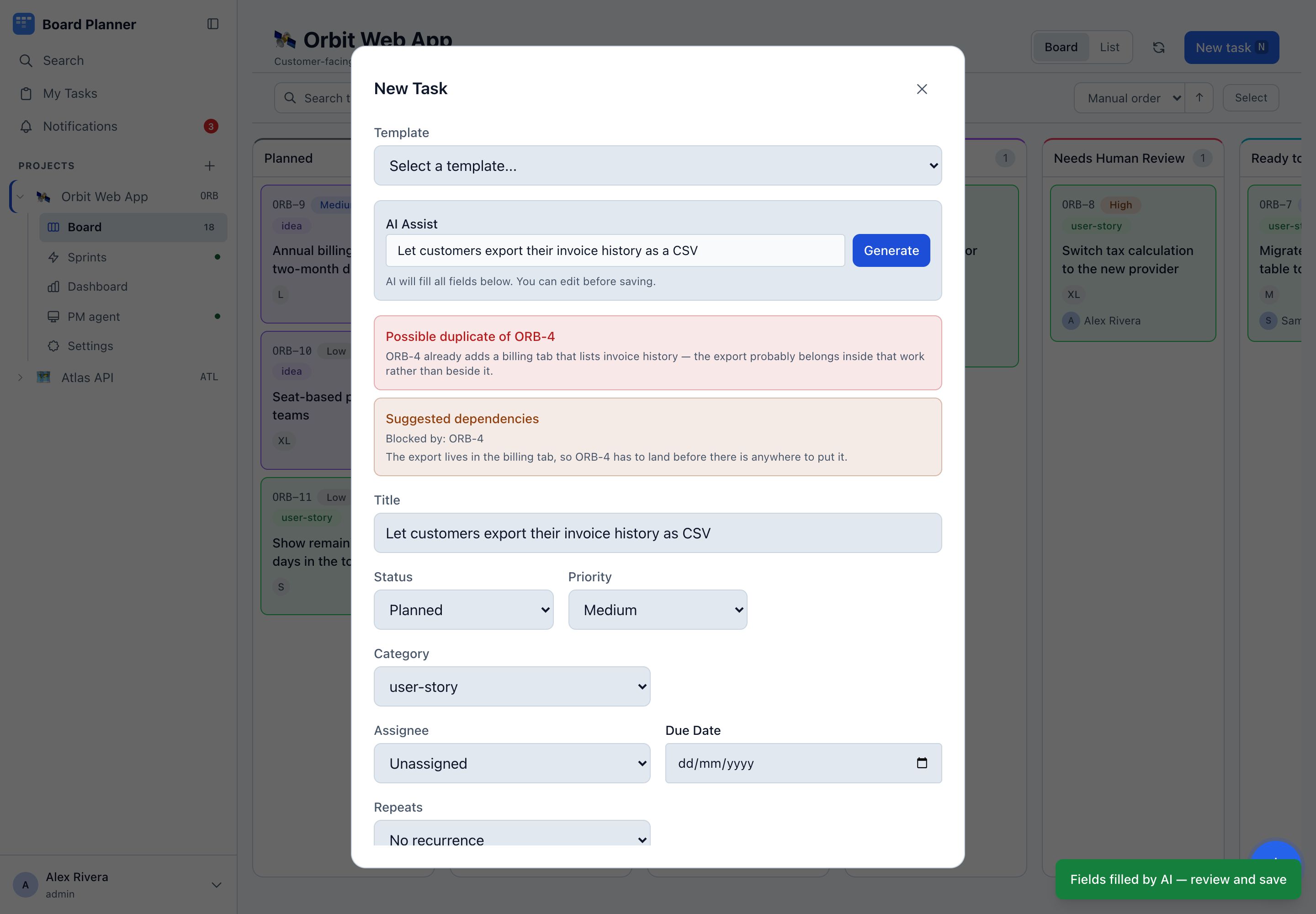
It writes a title, a description, acceptance criteria, a category and a difficulty. Nothing is saved until you press save, and every field stays editable.
Each generation is paid for on the instance’s own key, so it is bounded: a prompt of up to 10,000 characters, one generation at a time per person, 20 per person in 15 minutes, and a number per project in any 24 hours, counted from its first generation rather than from midnight — 200 unless the instance sets AI_DAILY_GENERATION_CAP. The prompt box stops taking text at its length, and past any of the others the form says which one.
The more interesting part is what it notices about the rest of the board:
- Possible duplicate — when the task looks like one that already exists, you get the task key and a sentence explaining why. In the screenshot it spotted that the CSV export belongs inside the billing tab work rather than beside it.
- Suggested dependencies — tasks that should be finished first (Blocked by), or that this work would block, with the reasoning.
Both are suggestions, not actions. The agent has read the project’s existing tasks to produce them; it is up to you whether to accept, adjust, or ignore.
Linking to another task, and to people
Section titled “Linking to another task, and to people”Type the project’s key followed by a dash — ORB- — and a list of matching tasks appears at the caret. Keep typing to narrow it: digits match on the task number, anything else matches the title. Pick one and the key lands in the text.
Type @ and the same thing happens for people, matched on username or full name.
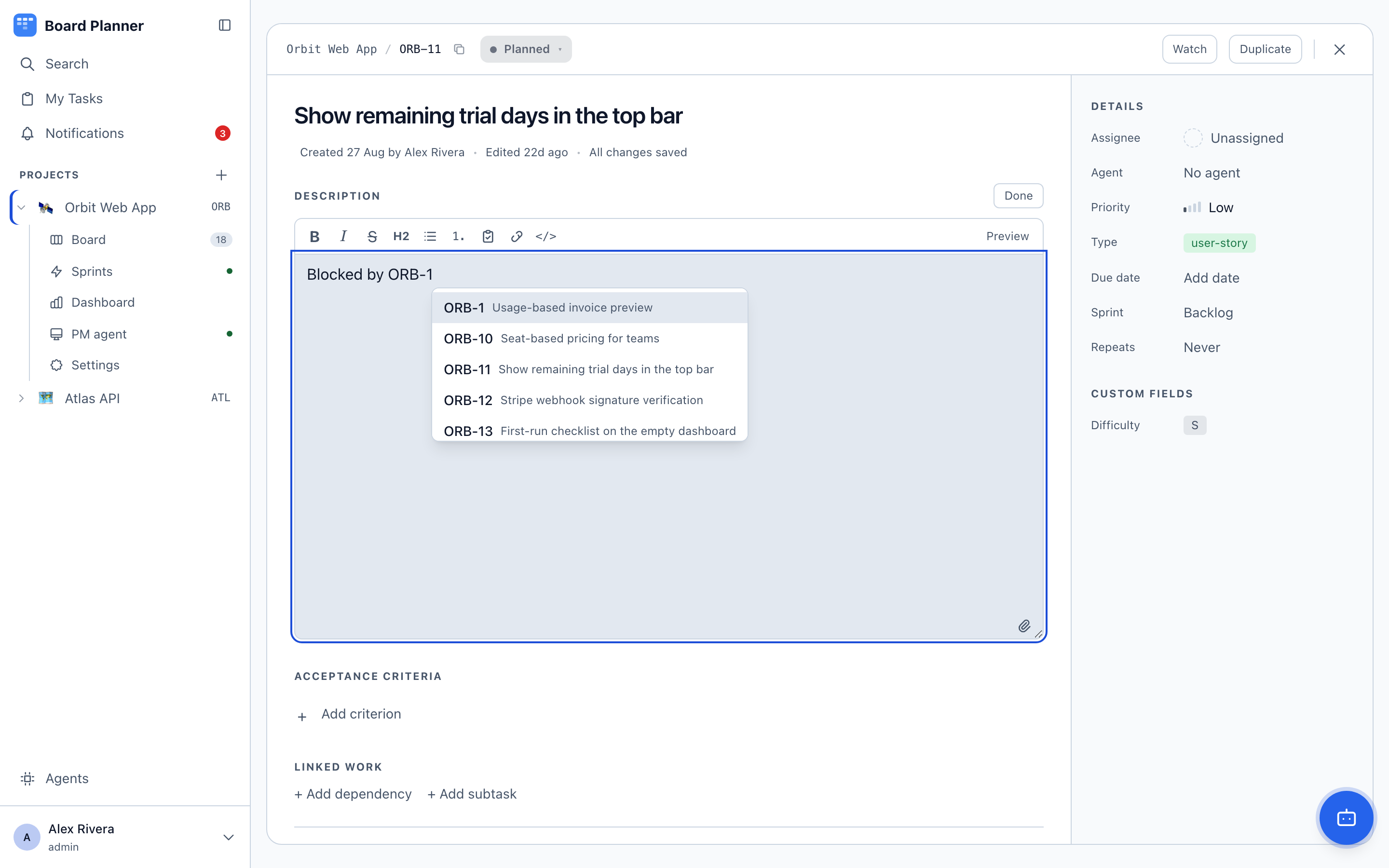
Both work in the description, in acceptance criteria and in comments.
What gets stored is the key itself — ORB-14, as plain text, never a link. The link is made when the text is displayed, which has two consequences worth knowing:
- A key you typed by hand, without ever seeing the suggestion list, becomes a link just the same. Case does not matter:
orb-14works. - A project’s key cannot be changed through the app, so a key written into text keeps linking. An operator can still change one with
scripts/migrate-project-key.ts, which rewrites keys in task text to the new one and records the old key in the project’s former keys, so whatever still carries it — a branch, a pull request — keeps linking. The suggestion list only ever offers the current key.
Attachments
Section titled “Attachments”The description accepts files directly: paste an image from the clipboard, or drag a file onto the box. It uploads and leaves a Markdown link in place, so a screenshot of the bug sits inside the task that reports it. This works both in this form and in the description on the task detail.
The PM agent chat also accepts pasted attachments.
Comments are text only — Markdown and @mentions, no file upload. Put the picture in the description.
A task number is never spent by a refusal. Numbers are allocated per project and never reused, so ORB-14 means one task for ever — but a create the server turns down, for a bad field or a name it does not know, leaves the next number where it was. A board’s keys have no gaps somebody has to explain.
The assignee is a username. A name no account holds is refused, naming what it looked for — it is never quietly dropped, which would leave the task unassigned and nobody the wiser. A name that exists but has no access to the board is refused too, and the message says where the board’s own roster lives.
An upload belongs to the project it was added to. Reading one is checked against your access to that board, so a file id on its own gets you nothing — a request for somebody else’s attachment answers not found rather than forbidden, which is the same answer a file that does not exist gets.
Images up to 5 MB: PNG, JPEG, GIF, WebP and SVG. The first four display in the browser; an SVG downloads instead of rendering, because an SVG is a document that can carry script.
Editing later
Section titled “Editing later”Everything above can be changed after the fact from the task detail, where the description saves as you type and the details rail carries the same fields. Some fields are also editable without opening the task at all: status and assignee from the list view, status and sprint from the card’s right-click menu.