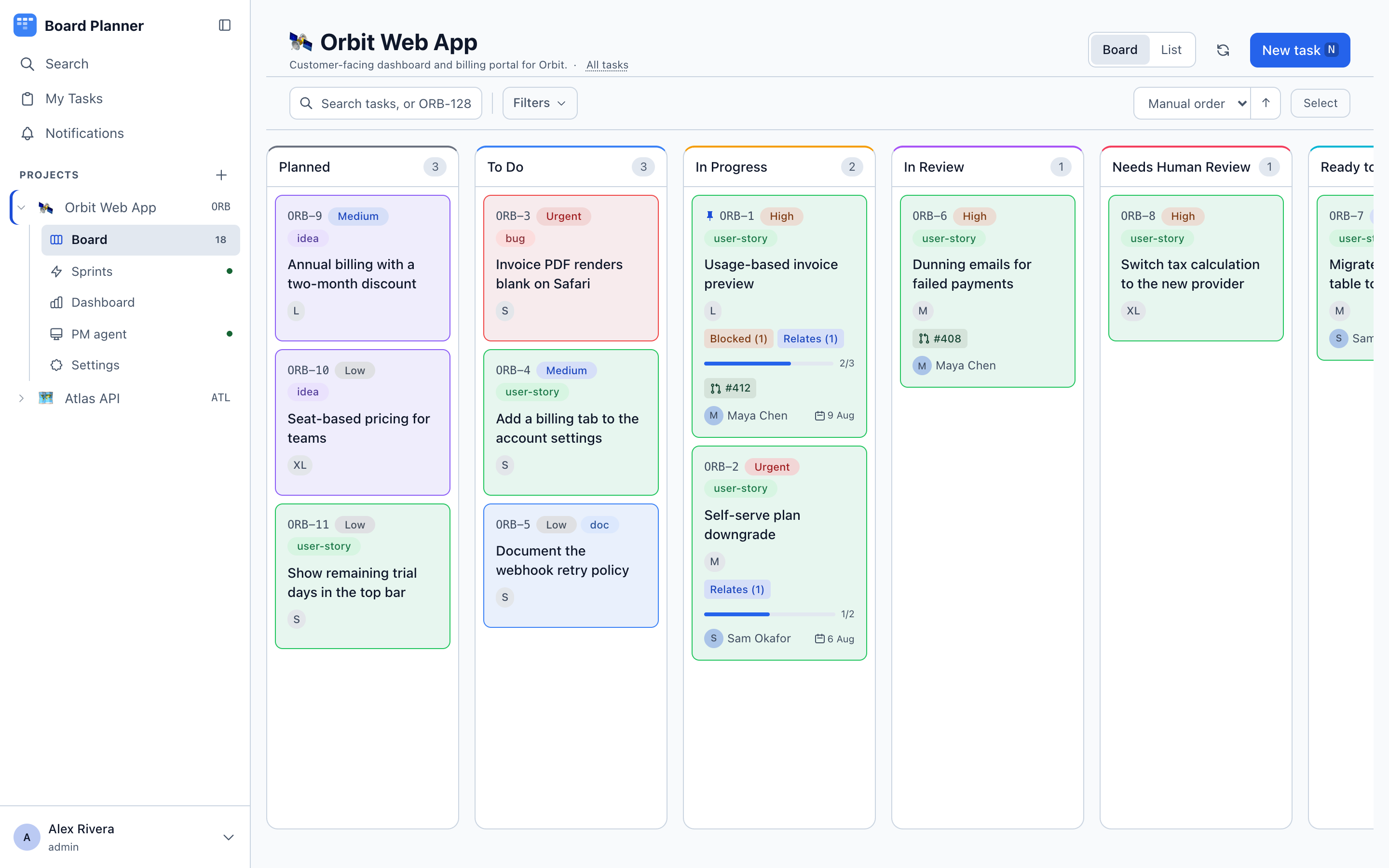
Board view
The board shows one column per status, in the order you configured, with a count in each header.
Reading a card
Section titled “Reading a card”A card carries only what helps you triage at a glance:
- Key and priority —
ORB-1, then a coloured priority chip. Urgent and High stand out; Medium and Low stay quiet. - Category —
bug,doc,user-story,idea, coloured per project. - Title.
- Dependency chips — Blocked (1) in red when something is in the way, Relates (1) for softer links.
- Checklist progress — a bar with
2/3once the task has acceptance criteria. - Pull requests —
#412when a branch or PR has been matched to the task key, with a mark for what its build says:✓passed,✕failed,●still running,?not read. Hover for the pull request’s title and the check that decided it. Three at most, then+2. See Integrations. - Assignee and due date.
- Custom fields you marked On the card — the
S/M/L/XLchips in the screenshots are a Difficulty Choice field. - A running execution — a pulsing outline and the current phase, when an execution worker has the task. Amber and still means the worker has not reported for five minutes.
The browser tab counts for you
Section titled “The browser tab counts for you”While a board is open the tab is titled with what is moving — Walk (1 in progress, 1 todo) — Board Planner — counting the columns whose role is active and approved, so a board that renamed them is still counted correctly. A count of zero is left out rather than written as a zero, and the plain name comes back when you leave the board. It is there so a board left open in a background tab still says whether anything is waiting.
Moving work
Section titled “Moving work”- Drag and drop a card to another column to change its status, or within a column to reorder it. Manual order is saved per project. A task an execution worker is running asks before it moves, because leaving the column ends the run.
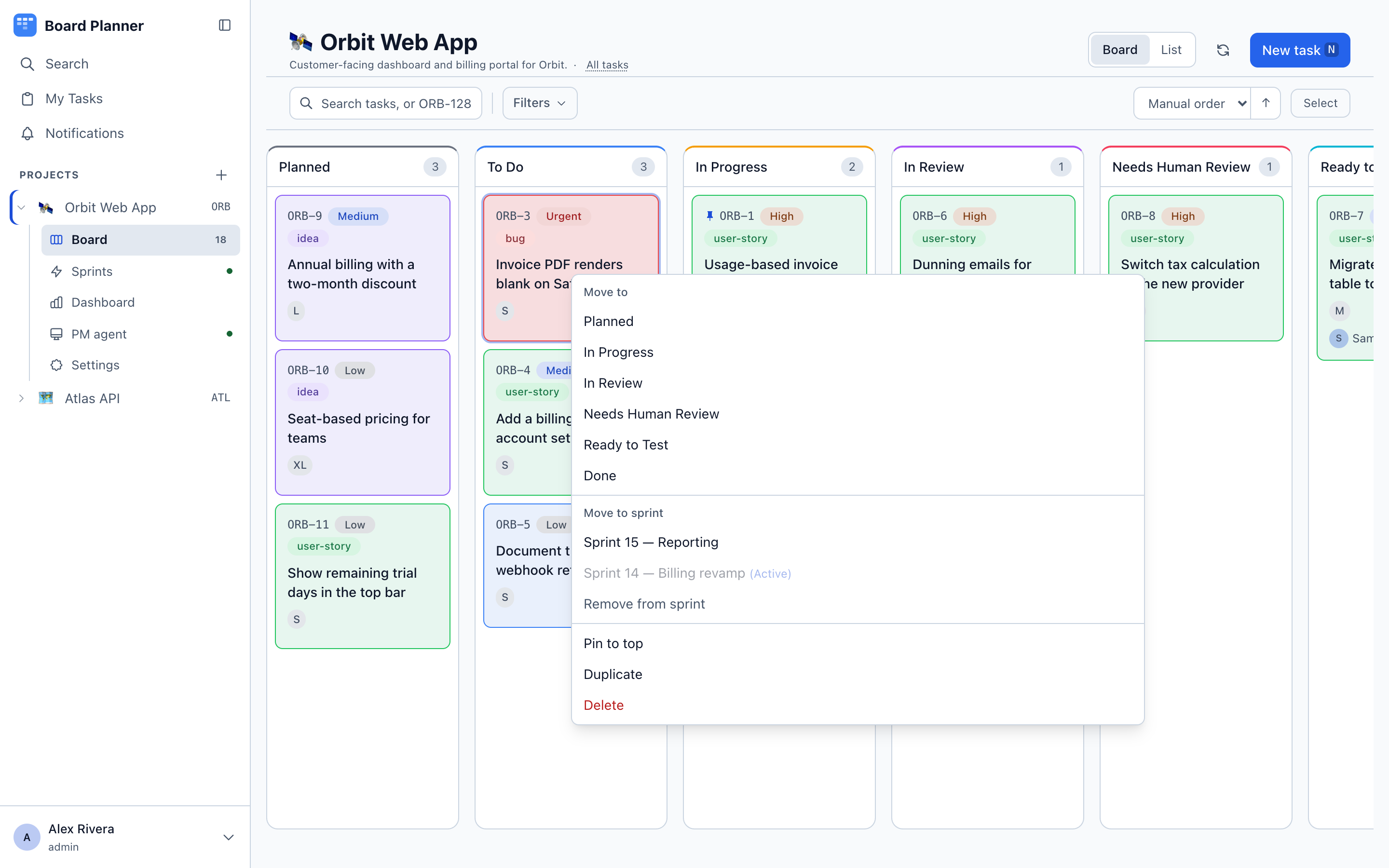
- Right-click a card for quick actions without opening it: Move to another column, Move to sprint while the board has a planned or active sprint, Duplicate for a single card, and Delete. Remove from sprint is there whenever the task is in one, even on a board with no open sprint, because a task can sit in a sprint that has been closed.
- Select turns on multi-select. With several cards selected, the same menu acts on all of them at once — move them to a column, move them to a sprint, or delete them in one go. Shift-click adds a card to the selection; Escape clears it.
Sorting and layout
Section titled “Sorting and layout”The control on the right switches between Manual order and field-based sorting, with an arrow for direction. Each field starts in the direction that is usually wanted — newest first for Last updated and Created, earliest first for Due date, most urgent first for Priority — and the arrow flips it.
The board offers Manual order, Key, Last updated, Created, Due date, Priority, Category and Title. It deliberately does not offer status, assignee or sprint: the board already groups by status and shows neither of the other two, so those read as nonsense here. The list view offers all eleven, plus any custom field you marked In the list. Empty columns collapse to a narrow strip by default; you can turn that off in your preferences.
The board itself does not scroll on desktop — the page stays put and each column scrolls independently, so the column headers never leave the screen.
Dark and mobile
Section titled “Dark and mobile”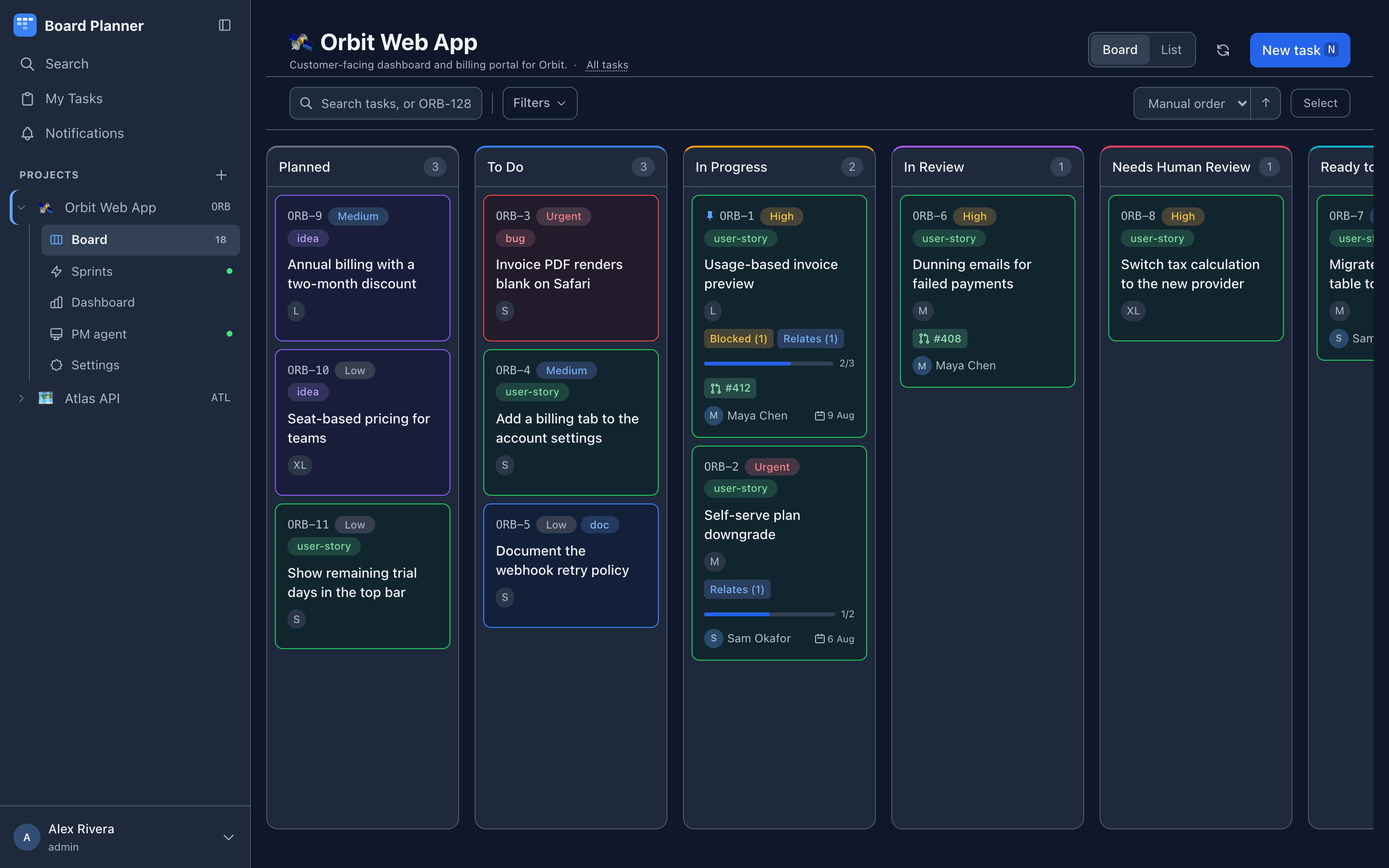
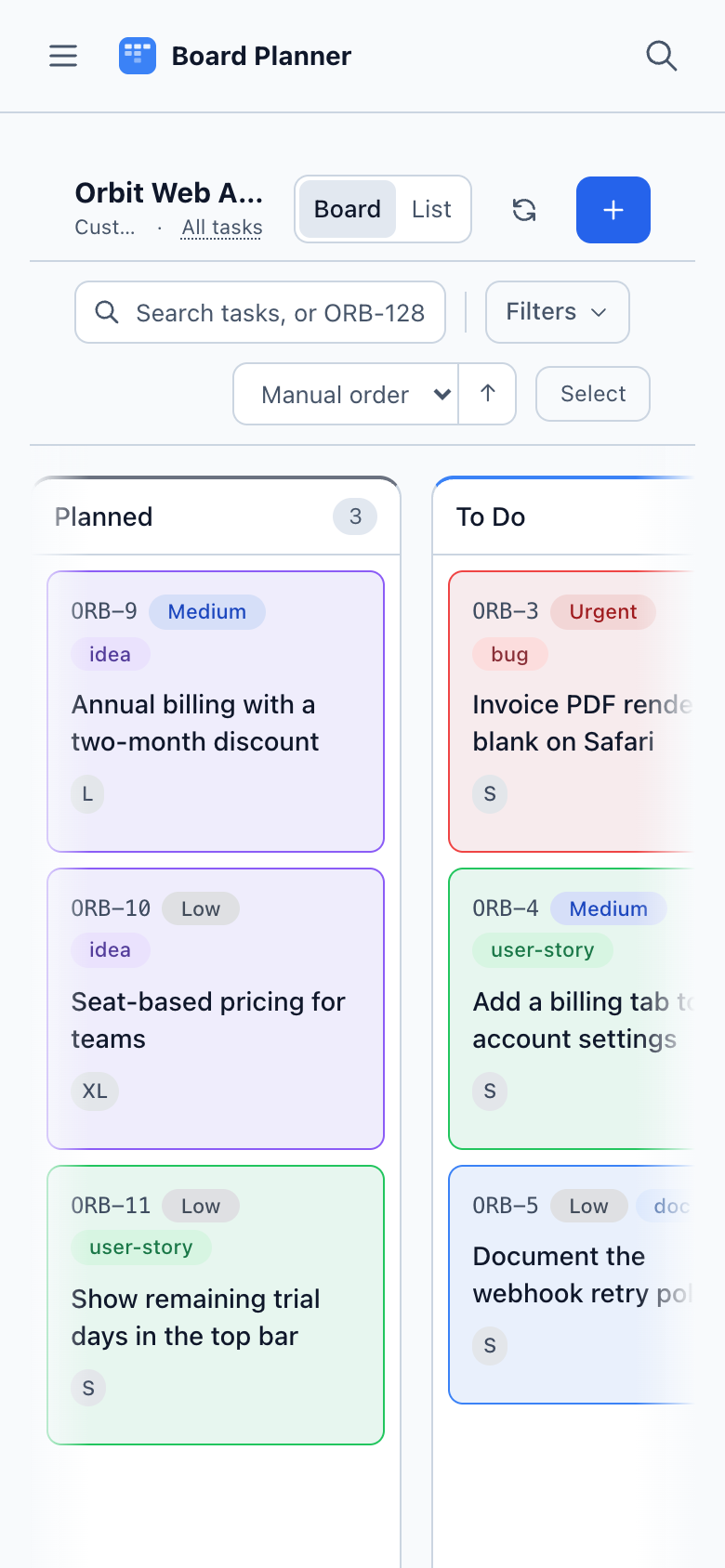
On a phone each column fills the screen in turn. Flick left or right to move between them, or tap one of the dots above the board — they show which column you are on and how many there are, in the order the project configured. The board stops at the first and last column rather than looping round, so the ends of the board stay findable.
The sidebar moves behind a hamburger menu and New task becomes a + button. The toolbar keeps Filters, the order control and Select on one line; the board’s own search box gives up its place to them, because the magnifier in the header opens a search page that covers the same ground.
Cards cannot be dragged on a touch screen — a phone has no drag to give — so each one carries an actions button. It opens the menu right-click opens on a desktop, Move to included, which is how a task changes column here.