Sprints
A sprint is a named window of time with a goal. Sprints are optional — plenty of teams run this board as a pure flow system — but they are the cheapest way to answer “what are we doing this fortnight?”.
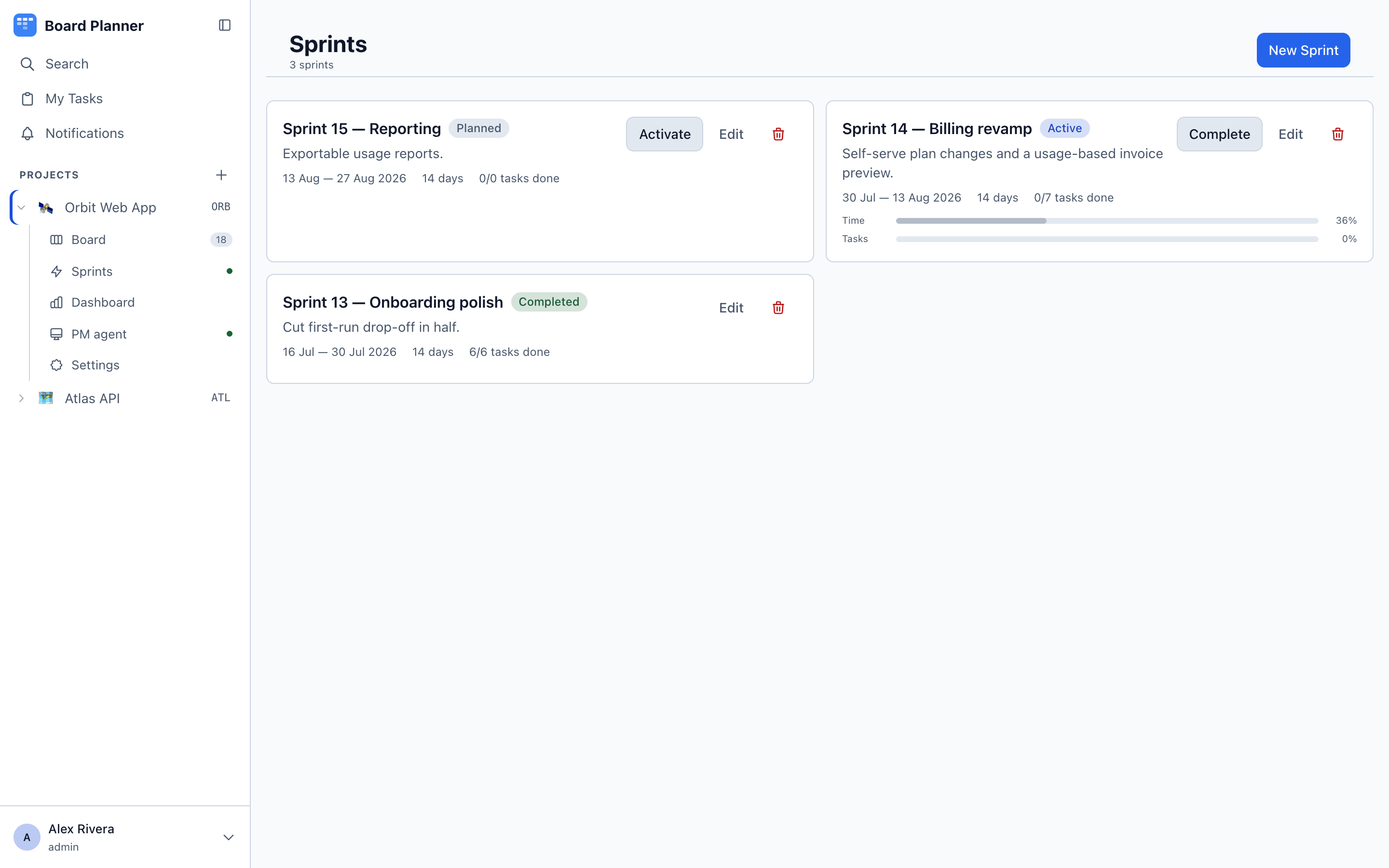
The three states
Section titled “The three states”| State | What it means | Action available |
|---|---|---|
| Planned | Scoped but not started. Fill it while the current sprint runs. | Activate |
| Active | The sprint in flight. Shows the days left and a task progress bar. | Complete |
| Completed | Closed. Kept as a record — the dashboard still counts its work. | — |
The Sprints tab
Section titled “The Sprints tab”Sprints are listed down the left, grouped Active, Planned and Completed, each row showing its name and how many of its tasks are done. The active sprint is selected when you arrive; if there is none, the one starting soonest is. Completed sprints stay in the list, with older ones folded behind a Show N older row.
Selecting one puts it in the header — name, state, goal, dates, days remaining and a progress bar — and puts that sprint’s own board underneath. It is the project board narrowed to the sprint, so dragging a card between columns changes its status exactly as it does on the main board, and clicking one opens the task.
The selected sprint lives in the address bar, so a sprint is a link you can send someone.
A completed sprint opens read-only: nothing drags, nothing can be added, and the lifecycle buttons are gone — but every card still opens, and Edit and Delete remain for fixing a name or removing one created by mistake.
On a phone the sprint name in the header is the picker: tap it and choose.
Running a sprint
Section titled “Running a sprint”- New Sprint — name it, set start and end dates, and write a goal in one sentence. A goal like “Self-serve plan changes and a usage-based invoice preview” is worth more than a list of task keys.
- Fill it — use the Planning view below, or open a task and pick the sprint in its details rail, or set it from the list view.
- Activate when the window opens.
- Complete when it closes. The dialog counts the unfinished tasks and offers Move to Backlog, which takes them out of the sprint, or Keep in Sprint, which leaves them in the completed one.
Deciding what is in the sprint
Section titled “Deciding what is in the sprint”The sprint header carries a Board / Planning toggle. Planning puts the backlog on the left and the sprint’s scope on the right, with a count on each, and the header still above so you watch the sprint fill as you work.
Drag a task to the right and it joins the sprint; drag it back and it returns to the backlog. Every row also carries a plus or a minus, which does the same thing without a gesture — that is the only route on a phone, and it works everywhere else too. Counts move as you go; nothing needs reloading, and a move the server refuses puts the card back where it came from and says so.
The backlog is simply tasks with no sprint — the same meaning Complete → Move to Backlog has always had. Finished tasks are hidden from it, since nobody plans work that is done, but typing in the filter box brings them back if you are looking for one.
Planning is available for planned and active sprints. A completed sprint has no scope left to decide.
A sprint belongs to the board it was created on. A task can only be put into one of its own project’s sprints; anything else is refused with Sprint not found in this project, so one board’s work can never turn up in another’s burndown or be swept along by another board’s sprint completion.
A sprint’s progress is counted from the board’s done-role column. A board that has none says no Done column — progress cannot be measured in the sprint header rather than reporting nothing finished, for the same reason the dashboard prints a dash instead of a zero: it is a statement about the board, not about the work.
Estimates and velocity
Section titled “Estimates and velocity”Board Planner has no built-in “story points”. Instead a project points at one of its own numeric fields and that field becomes its estimate — so a team measuring in points, hours or ideal days sees its own word everywhere, and a team that does not estimate sees nothing at all.
Set it in Settings → Task fields → Sprint estimates. The picker lists the project’s number fields plus None, which is the default. If the project has no number field yet, the row offers to create one for you and designate it in the same click.
Once a field is designated:
- the sprint header shows completed against planned beside its task count, labelled with the field’s name
- the Planning view totals the scope pane, so you see the size of what you are pulling in
- a Velocity button on the Sprints tab opens a chart of completed estimate per completed sprint
Tasks with no value count as zero. With fewer than two completed sprints the chart says so rather than drawing an empty frame — one bar is not a trend.
Designate nothing and none of this appears. No labels, no zeroes, no empty chart. A board that does not estimate is not told it has no velocity.
Archiving or deleting the designated field clears the designation, so nothing is left pointing at a field that no longer exists.
Reading an active sprint
Section titled “Reading an active sprint”An active sprint’s header carries two things worth reading together: how many days are left, and how much of the work is finished, as a bar and as done over total.
When the days are running out faster than the bar is filling, the sprint is behind. That is the entire report. Where a project estimates, the same line adds completed against planned in that project’s own unit.
Focusing the main board on a sprint
Section titled “Focusing the main board on a sprint”The scope lives in the address, so a board scoped to a sprint survives a reload and can be handed to somebody as a link — unlike the filter panel, which is remembered per project in your own browser and travels with nobody. Separately from the Sprints tab, the project board’s own header carries a sprint scope next to the project description — All tasks by default. Switch it to a sprint and the board shows only that sprint’s work, which is the view you want in a standup. Backlog (no sprint) is the other way round: everything nobody has committed to a sprint yet, which is the view you want when filling the next one.