Execution workers
A worker is a process on a machine you control that takes an approved task from the board and carries it as far as you let it — with nobody at the keyboard.
claim → worktree → implement → checks → push → PRWhat sits between the worktree and the pull request is an agent: an ordered list of steps and gates you compose, rather than a sequence baked into the worker. The line above is the shipped Default agent. A task runs the agent somebody chose for it and nothing else; a task that names none is not claimed at all.
An agent whose sequence ends with a Merge step takes the task to done. One that does not stops at the pull request. There is no separate setting — merging is a step.
Every step reports back to the task, so the task’s comment thread is the run log.
The pull request carries the agent’s own summary and, under it, the checks the run passed before it was opened — each gate with the commands it ran (npm ci and npm run build for the build, npm test for the tests) and how long it took. A gate that ran before a later step changed the code is not listed, since it never saw what was delivered. The list sits under a horizontal rule, below a heading that says it was written by the worker and not by the agent — and a heading of that shape in the agent’s own summary is dropped, so the obvious impostor does not reach the page. The rule and the label are what tell you which half is which. When the agent is composed with a build or test gate after a step, that step is told the worker runs them, so its summary does not say the tests were not run. This is from 1.1.2; workers up to 1.1.1 opened the pull request with the summary alone.
The worker talks to the app over REST with its own credential and never touches the database. The app can run in the cloud while the checkout sits on a laptop — and a machine executing agent-written code has no business holding database credentials.
The gates
Section titled “The gates”A run only ships if every gate passes, and the first rejection stops the run. The order is the agent’s — the Default agent runs them roughly cheapest first, and a Protected files gate always stands before anything that executes the repository’s own scripts.
Each gate’s limits belong to the block in the agent, so two Size gates with different limits are an ordinary thing to compose.
| Gate | Rejects when |
|---|---|
diff-size |
The diff is larger than the limit on the Size gate that rejected it. The project’s limits are the fallback for a gate that names none of its own. |
protected-paths |
The change touches a file a later step executes or loads as its own instructions: package manifests and lockfiles, build and test tool configs (vite, vitest, next, webpack, jest, babel, playwright, tailwind and the like), Makefile, anything under scripts/, .husky/, .github/workflows/, .github/actions/ or .claude/, agent instruction files, container and CI manifests, the build manifests of other ecosystems, and .gitattributes/.gitmodules. It also refuses a committed symlink pointing out of the checkout. |
test-presence |
Code changed but no test did. |
build |
The build fails. |
test-run |
The test suite fails. |
review |
A second agent, with a clean context — the task and the diff in front of it, and a clean checkout of the commit it can read but not change — rejects the change. Present because the agent carries a Reviewed gate, not because a box is ticked. |
A rejection is not a dead end: the branch is pushed, a comment says which gate said no, and the task is routed to a review column for a person.
With one exception. A Protected files rejection does not push. What the branch carries is exactly what that gate refused — a workflow file the agent wrote would run in Actions with the repository’s secrets the moment it reached the remote. The comment says where the work is instead: in the worktree, on the machine that ran it.
That work is not stranded there. The refusal also puts the change on the task, where you can read it and answer — see Accepting a refused change.
Accepting a refused change
Section titled “Accepting a refused change”The task shows the refused change: which gate stopped it, the commit it was judged at, the files that tripped the gate, and the diff. (A refusal caused only by a symlink pointing out of the checkout lists no files — the diff is where you see it.) Three answers, for the machine’s owner or an instance administrator, signed in through the browser — never an API token and never the PM agent, because an agent working unattended should not run another agent’s change under somebody’s name. Anyone who can open the task can read it.
| Answer | What happens |
|---|---|
| Accept and push | The machine pushes that exact commit and opens a pull request. It does not merge — the pull request is reviewed like any other. |
| Decline | The machine removes the worktree holding the change. |
| Give up | Settles the record so the task stops waiting. The worktree goes on that machine’s next poll — so for a machine that really is gone, the worktree stays on it until somebody removes it. |
What accepting spends
Section titled “What accepting spends”Accepting is not “push it so I can read it in a pull request”. On a repository whose CI runs on every push — the common setup — the push itself runs the change’s own build configuration on a runner, before anybody reviews anything.
And it pushes as whatever GitHub account that machine pushes as, which is not necessarily
yours: the account it has pinned, or whichever one gh has active there if it has pinned none. See
Which GitHub account it pushes as.
The panel says both before the button does anything.
What can never be accepted here
Section titled “What can never be accepted here”- A change that edits what CI itself does — a
.ymlunder.github/workflows/, or anything under.github/actions/. For a push event GitHub runs the workflow from the pushed branch, so accepting one would run the agent’s own version of your CI. That one is yours to commit by hand. - A change you have not been shown in full — a diff too large to carry, or one holding a file
git diffwill not print: a binary asset, one the repository marks as one, or a submodule pointer, whose whole diff is two object ids. The panel names the file in that second case; a diff that was simply too long says so without naming anything.
Declining and giving up stay available either way: nothing has to sit on a laptop because it cannot be accepted.
Two things worth knowing
Section titled “Two things worth knowing”Nothing on the board says a change is waiting. There is no badge on the card or in the list — the task itself is where you find it. The gate’s rejection comment is what brings you there.
Running the task again destroys the offer. A new claim marks a waiting decision superseded and rebuilds the worktree, so the commit it pointed at stops existing. Answer it, or leave the task alone until you have.
Once the machine has pushed, the panel offers the pull request it opened. The address comes from the machine, so the panel checks it names this project’s repository before it offers it as a link: one that does not is printed as text, with its host, for you to read rather than click. A repository that has been renamed or forked can land there honestly, which is why it costs a click and never an accept.
The verdict is recorded in Settings → Audit log, naming who answered and which commit.
If the machine has gone
Section titled “If the machine has gone”Once a machine has been silent for ten minutes the panel says so. One that has been re-imaged, switched off or deregistered never hears the answer at all, so Give up is what stops the task waiting — and leaves you to remove that worktree yourself.
If the machine is there but the change has moved on — the branch is no longer at the commit you accepted, or the diff no longer matches what you read — the push is refused and the task says why. Accept again once you have looked; a network fault does not cost you a second reading. A machine that keeps failing stops after five spaced attempts and says so, rather than retrying for ever — accepting again starts it over.
When a run does not finish
Section titled “When a run does not finish”- A usage limit returns the task to the queue with its attempt refunded — that is not the task’s failure.
- A machine fault does the same, and is recorded apart from it. The machine could not do the work at all — a remote it cannot reach, a checkout whose git config it will not read, a sandbox that stopped working after the worker started — so the worker stops claiming until its next poll, rather than feeding the queue into it. It shows in the colour used for a bad end, with the reason beneath it, in two places that word it for their readers: Settings → Workers → Run history says Machine fault and names the machine in its own column, if you administer the instance; a project’s own Project settings → Workers → Recent runs says Didn’t finish, because that screen has no machine to name and nobody reading it can fix somebody else’s. Not didn’t run: a fault is not only a machine that failed before it started. A gate that cannot confine the command it was asked to run reports one after the agent has worked, and the row then shows the minutes and the cost of a run that really did happen.
- A crash or timeout returns it to the queue and spends the attempt, so a task that keeps failing runs out of retries and lands in front of a human instead of cycling forever.
A machine that could never confine the agent is not this: it claims nothing in the first place, and says so in its Preflight column rather than in the run history. That column is worth reading for more than this one case: a checkout the worker will not trust reports there too, with what to do about it. See What the machine needs, or Running the agent unconfined if that machine has no sandbox and you mean to run anyway. A machine fault is the machine failing at something it was expected to manage.
One shape of it asks something of you directly. A checkout whose git config carries a key git would execute is refused rather than merely unread, and that checkout is then quarantined on that machine: nothing claims against it, for any project, until the key is gone and the worker restarts. The instruction is written into the Preflight column — “Remove the key, then restart this worker.” A key that was already there when the checkout was bound never gets this far; it is refused at that point instead, in the fleet console. What reaches here is a key that appeared afterwards.
The difference from a usage limit is the one worth knowing: a usage limit repairs itself on a clock and the same machine will run the task again, while a machine fault is the machine itself. That does not always mean somebody must go and look — an unreachable remote or a git command that timed out under load is a fault that clears on its own, and the worker tries again a poll later. One that keeps coming back is the one to go and look at. Both leave the queue untouched, so neither shows up as work going wrong — which is why they are separate words rather than one.
If you run the menubar app on that machine, a machine fault raises a notification there too — once per project while the fault lasts, rather than once per poll — and the icon changes until the machine runs something. Reconnecting resets both: restart the worker, or reopen the app, and the icon goes back to idle and the next fault is announced again. That is deliberate, and worth knowing before you read a green icon as a repair — a restart on its own proves nothing about the machine.
Moving a task a worker is running
Section titled “Moving a task a worker is running”A running task is marked wherever you meet it. On the board its card carries a pulsing outline and the current phase — agent, gates:build, push. In the list view a pulsing dot sits beside the key, with the machine and phase in its tooltip. If the worker stops reporting for five minutes, both turn amber and stop pulsing.
Dragging that card to another column does not simply move it. Leaving the column ends the run, so the move is refused and the board asks first:
This task is being executed CP-7 is being executed by mac-mini (phase
agent). Moving it takes the task off that worker and its work is lost.
Move anyway takes the task and discards whatever that run had done. Cancel leaves it where it was.
Two things are deliberately untouched: reordering a card inside its own column, and editing anything other than the status. Renaming a task a worker is running was always harmless, and stays harmless.
Over the API the refusal is a 409 naming the worker and its phase; force: true on the request performs the move anyway. The PM agent receives the refusal and can act on it, but is given no way to force — an agent working unattended should not take a task off a machine.
Silence is not treated as death. The agent phase reports when the model uses a tool rather than on a clock, so a worker thinking hard for several minutes looks identical to one that has crashed. Rather than guess and discard real work, an abandoned run is left to the two-hour lease, which returns the task to the queue and spends the attempt. Anyone who knows better can take it back sooner with Move anyway.
Which repositories a machine will run
Section titled “Which repositories a machine will run”This is decided on the machine, not in the browser. A worker reads repos.json in its state directory:
{ "repos": ["/Users/you/code/the-repo"] }Absolute paths, and the file must be readable only by its owner. For each entry the worker resolves the checkout’s origin remote and reports the remote to the app. It reads the file again on every refresh, about once a minute, so a checkout you add is reported without restarting the worker — even while the app is refusing the machine’s own requests. That is from 1.1.2; a worker up to 1.1.1 needed a restart to get past it. The app matches those remotes against each project’s configured repository and answers with the projects that machine may serve.
The direction matters. The app never sends a path. It says which project is enabled and which repository it belongs to; the worker looks that repository up in its own list. A directory nobody put in repos.json cannot be reached by any setting, by anyone.
An entry that has gone missing, or has no origin, is skipped — one stale line does not cost the machine every other checkout it could serve. If the file itself cannot be read, the reason appears against the worker in the fleet console, rather than the machine quietly appearing to have nothing.
A checkout is also checked before it is used at all. One whose .git/config carries a key git would run — a core.pager, a filter.*.clean, a credential helper, an alias, a signing program — is refused there and then, with the key named, and the machine serves everything else in the list as usual.
Two more shapes are refused for the same reason, and both are easier to have by accident than by malice: an [include] path = …, because what that file says can change after anyone has looked at it, and the same executable keys sitting in a per-worktree config (extensions.worktreeConfig) rather than in .git/config, where an older check could not see them at all.
The reason appears against that machine in Settings → Workers, in its Binding error column, while you are watching and before any task has been claimed. Remove the key and the checkout binds on the next refresh — no restart, unlike the quarantine below. It is the rule a run applies to the same checkout, so a checkout is never approved under one standard and refused under another.
From 1.1.2 the same goes for a checkout in a place the worker will not work in at all — a system or temporary directory such as /private/tmp, one other users can write to, one that is not its own repository. For that project the machine is not live, whatever its heartbeat says: its owner’s own task says Your machine is connected but not taking work for this board, followed by what is wrong in words that say what to do — its checkout is in /private/tmp, a directory the worker refuses to work in. Move the checkout somewhere else, such as your home folder, and update repos.json on that machine. — and the project’s Settings → Workers → Machines offering this repository lists the machine as cannot use its checkout, with the same sentence under it. The reason names a path on somebody’s machine, so the task shows it only to that machine’s owner, and the list only to instance administrators — who see it in the fleet console anyway.
Git-LFS is not a repository this worker can serve, and which half you hit depends on how it was set up. Inside the checkout (git lfs install --local), the filter.lfs.clean it writes is a program git runs, so the machine refuses to bind it and names the key. Set up the usual way — git lfs install, which writes your own global config — nothing refuses it, and the worker will not run the filter either: it would commit the working-tree bytes where a pointer belongs. Do not point a worker at an LFS repository.
Setting one up
Section titled “Setting one up”The menubar app does this for you, and it is the shorter path: open it, point it at your board, choose the folder it keeps its checkouts in, click Connect. It checks the machine, opens a browser for you to approve, clones the repository, stores the credential, and starts the worker. The rest of this section describes where the software comes from, what it is doing, and how to do it by hand — which is still supported, and still what a Linux box or a container uses, with the caveat below about the sandbox.
For the whole path from an empty instance, including the project settings a run needs, see First agent run.
Getting the software
Section titled “Getting the software”Every release of Board Planner carries the software on its releases page:
| File | What it is |
|---|---|
board-planner-menubar-X.Y.Z.zip |
The menubar app, with the worker inside it. Signed with a Developer ID and notarised by Apple. |
board-planner-worker-X.Y.Z.tar.gz |
The worker on its own, for a machine run by hand, a Linux box or a container. |
SHA256SUMS |
Checksums of both. |
The menubar app needs a Mac on macOS 14 or later, Apple silicon or Intel, and the programs listed in What the machine needs — Node.js among them, because the worker the app carries is a Node.js program. Nothing needs building.
- Download the
.zipand open it. It unpacks toCPMenubar.app. - Move
CPMenubar.appto Applications. - Open it. macOS asks once whether to open an app downloaded from the internet; choose Open. The app has no Dock icon and no window: look for it in the menu bar.
To update, choose Quit and stop the worker at the foot of the app’s panel, replace CPMenubar.app in Applications with the one from the newer release, and open it again. The machine’s credential, its checkouts and its settings live outside the app — in ~/.boardplanner and the app’s preferences — so nothing needs setting up again.
The worker on its own needs only Node.js — no npm install, because it has no dependencies:
tar -xzf board-planner-worker-X.Y.Z.tar.gzcd workernode dist/main.js --preflight--preflight checks the machine and prints what it found, without registering anything. The folder it unpacks is the same worker/ a clone has, so By hand reads the same either way. To update, unpack the newer tarball over it and restart the worker. The fleet console’s Version column shows the release each machine runs, read from the package.json it ships with — from 1.1.2; a worker up to 1.1.1 reports 1.0.0 whatever it is.
Building from source
Section titled “Building from source”Only needed to run unreleased changes. The app needs Xcode 16 or later (it is Swift 6) and Node.js with npm; the project’s own CI builds on Node 26.
git clone https://github.com/rafalpodles/board-planner.gitcd board-planner/menubarmake appopen .build/CPMenubar.appmake app runs the app’s tests, builds the worker, and assembles .build/CPMenubar.app with the worker inside it. That build is signed ad hoc, so it opens on the Mac that built it and nowhere else.
The worker alone builds with npm ci && npm run build in worker/ of the clone.
What the machine needs
Section titled “What the machine needs”The machine should be a Mac. The worker runs the coding agent inside a sandbox that stops it writing anywhere but the worktree it was given, and the sandbox it uses — seatbelt, sandbox-exec — is macOS only. A machine that cannot confine the agent takes no work at all: it still registers and still appears in the fleet console, with the reason in its Preflight column, but it claims nothing. You can accept the risk and run anyway; see Running the agent unconfined.
The worker needs Node.js and nothing else of its own, and it drives four programs that must already be on the machine — and two of them must be signed in.
| Needs | Why |
|---|---|
node |
The worker is a Node.js program. The menubar app looks for it through your login shell, then in Homebrew’s and the usual system directories, and says so if it finds none. A node that only nvm in .zshrc puts on the PATH is not found, because a login shell does not read that file. |
git |
Worktrees, branches, diffs. With no GitHub account pinned — and on every worker up to 1.1.1 — git’s own name and address are what the commits carry, so it needs them; see Who the worker is. |
npm |
The build and test gates run npm ci, npm run build and npm test. |
| macOS | The agent runs inside a sandbox that keeps its writes in the worktree, and that sandbox is macOS only. See Running the agent unconfined for the alternative. |
claude, signed in |
The coding agent. Sign in with claude auth login. |
gh, authenticated |
It pushes the branch and opens the pull request as that identity. Authenticate with gh auth login. On a machine with more than one GitHub account, say which one — see Which GitHub account it pushes as. |
The repository the worker will serve needs a package-lock.json and both a build and a test script, because the gates run them on every task. A repository without them fails the same gate every time.
You do not have to check any of this by hand. The worker checks it at startup and reports what it found, and the fleet console shows the result in its Preflight column: which program is missing, which session is not signed in, which account claude is using, and — from 1.1.2 — a commit identity row naming the name and address its commits will carry, with a warning when that falls back to the machine’s git config or when nothing names an identity at all. A worker that has never reported reads not reported rather than passing — a machine that cannot do the work should never look ready.
It also resolves where those programs actually live and puts those directories on the environment it hands the agent. That matters under launchd, whose PATH is /usr/bin:/bin:/usr/sbin:/sbin — no Homebrew and no nvm — which is otherwise a worker that looks healthy and fails every task.
Which GitHub account it pushes as
Section titled “Which GitHub account it pushes as”If gh on that machine holds only one account, there is nothing to decide and nothing below applies.
With two, the account gh calls active is shared with every other program on the machine, and any
terminal can change it with gh auth switch. A worker left to gh’s own answer therefore pushes as
whichever account somebody switched to last — which fails as a permission error on the repository if
that account cannot write to it, and, more quietly, succeeds under the wrong name if it can.
Open the menubar app and pick the account under Preferences → Connection, or during onboarding.
The row appears only where there is a choice to make. The machine then keeps pushing as that account
whatever else happens on it: the worker asks gh for that account’s token by name at the start of
each task and carries it on its own calls. A change applies to the next task — a run already in
flight keeps the identity it began with, so nothing switches under a push that has already started.
Choosing Whichever gh has active is how you go back to following gh auth switch.
The preflight check names the account, so the fleet console’s Preflight column tells you which
identity a machine pushes as without anyone running gh auth status on it. An account you pinned
and later logged out of fails there, in a row you can read, rather than thirty minutes into a run as
a 403 from GitHub.
From 1.1.2 the pinned account is also who the commits are by — see Who the worker is.
Credentials
Section titled “Credentials”A worker holds one, and it cannot lift its own kill switch. That is the point: the worker runs the coding agent under its own user account, so anything on that disk is readable by the agent.
A machine gets it by being enrolled, and there are two ways to do that. Whoever enrols a machine owns it, and it reaches exactly the projects they reach; no administrator approves it.
| Path | Who | How |
|---|---|---|
| From the machine, confirmed in a browser | Anyone signed in | The menubar app’s Connect. The approval page shows a code to compare with the app’s, asks which project’s repository to set up first, and says the machine will act under your account. A code lasts fifteen minutes. See From the app. |
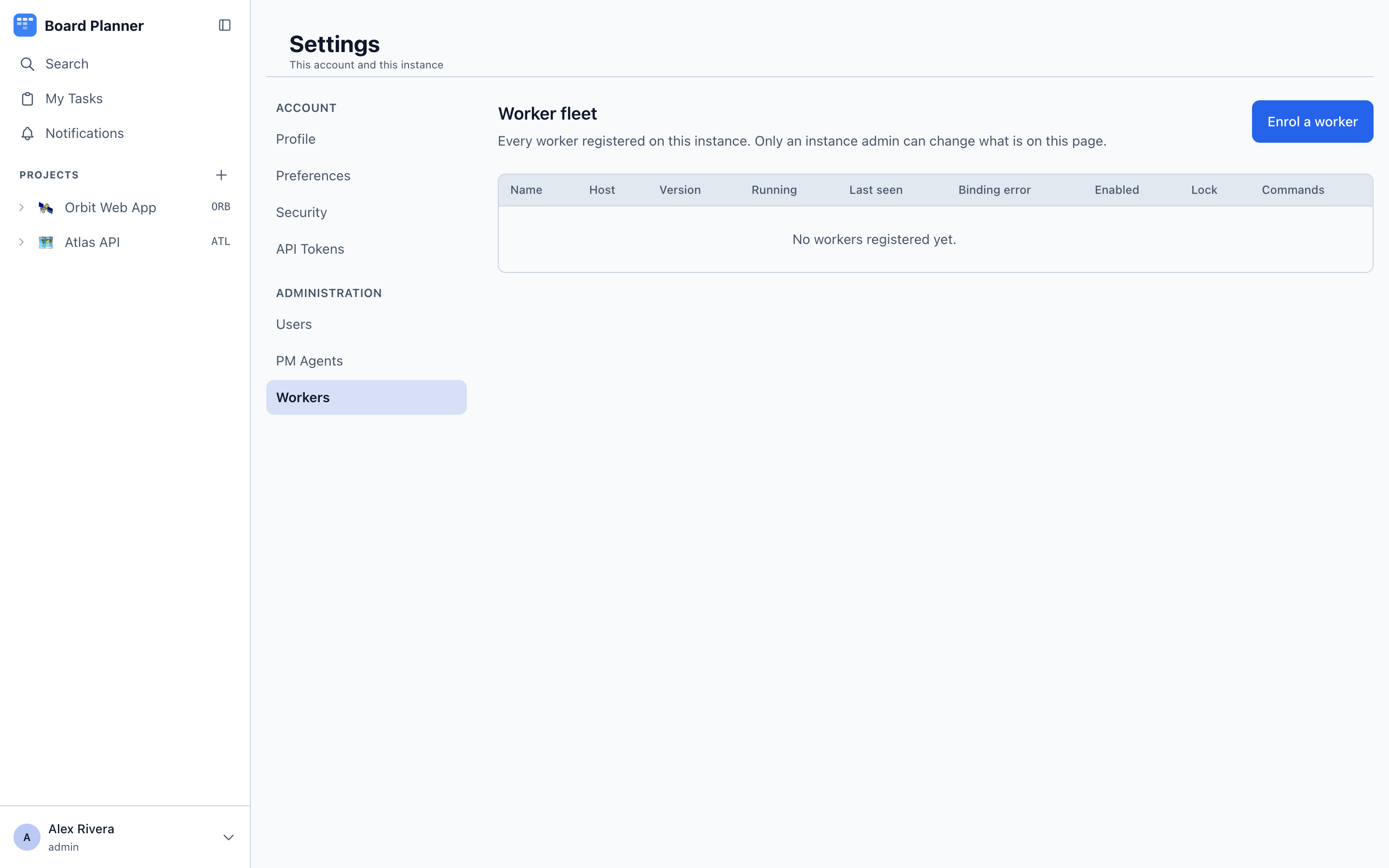
| With an enrolment token | An instance administrator, today | Settings → Workers → Enrol a worker, then the token goes on the machine for a worker run by hand. The route for a machine with no menubar app: a Linux box or a container. |
An enrolment token registers the machine, once. It is minted signed in through the browser — an API token cannot mint one — and the Enrol a worker button is on the fleet console, which only an instance administrator can open. It is shown a single time, lasts an hour, and registers exactly one worker. The worker spends it on first start and deletes the file itself; a machine that already has an identity never needs another — unless its owner’s password changes, which revokes the credential of every machine they enrolled, so each must be enrolled again.
Registration hands back the credential the worker uses from then on — for claiming, for reporting status, for commenting and for releasing. You do not create a second token, and you should not. Its scope would be a list fixed the moment you minted it, while what a worker may touch is worked out afresh on every call: the project must be enabled for workers and not locked off by an instance administrator, and this machine must report a checkout of its repository. Enable another project and the worker simply gains it. With a minted token it would have claimed the task and then been refused when it tried to report, leaving the task stuck until its lease ran out.
Environment
Section titled “Environment”| Variable | Required | Default |
|---|---|---|
CP_API_URL |
yes | — |
CP_ENROLMENT_TOKEN or CP_ENROLMENT_TOKEN_FILE |
first start only | — |
CP_WORKER_NAME |
yes | — |
CP_STATE_DIR |
no | ~/.boardplanner |
CP_ALLOW_UNCONFINED_AGENT |
no | unset |
The enrolment variable is deliberately optional: once the worker has registered, it must keep starting after you remove it.
The menubar app talks to the worker over a socket, worker.sock in the state directory. macOS allows a socket path 104 bytes, so from 1.1.2, when the state directory is deep enough to push it past that, the worker puts the socket under /tmp instead, in a folder only you can open, and the app looks for it in the same place. Both refuse that folder if anyone else owns it or can open it, and the app says so in its panel. Nothing needs setting. A worker up to 1.1.1 cannot, and logs local control socket unavailable … listen EINVAL.
Running the agent unconfined
Section titled “Running the agent unconfined”CP_ALLOW_UNCONFINED_AGENT=1 is a risk acceptance, not a setting. With it the agent runs with nothing stopping it writing outside its worktree — your shell profile, your ~/.claude/settings.json, anything your user account can reach. Set it only where you cannot use a Mac and you understand that, and preferably on a machine that holds nothing you would mind losing.
Until you set it, such a machine takes no work at all. It still registers, still heartbeats, still appears in the fleet console with its red row, and still answers Pause, Resume and Stop — it simply claims nothing, and says why once in its log. It does not claim tasks and fail them, so nothing of yours ends up in front of a person because of it.
1, true and yes all mean yes. Anything else, including 0 and false, leaves the confinement on.
It lives in the machine’s own environment and never in the project’s worker settings, deliberately: settings come down from the board, and the agent reaches the board.
The fleet console shows what each machine is doing. A machine with no sandbox reads as a failed preflight check naming the way out; one whose owner has accepted the risk still reads ready — it works, and it may take work — with ⚠ sandbox beside it in amber, and the sentence spelled out on its own line under the row, opening with the word Warning. The mark and the word are there because the colour alone is not something everybody can read. It is not a failed check: a machine that is permanently red is a machine people stop reading.
Running one
Section titled “Running one”From the app
Section titled “From the app”Open the menubar app on the machine — see Getting the software for where it comes from. With nothing connected yet its panel, Connect this Mac, offers three things in order:
- Where the board lives — the board’s address, such as
app.example.com— and what to call this machine. - Where it keeps its checkouts. A folder that holds checkouts, not a checkout: the worker clones its own copy of each repository inside it rather than borrowing yours. The picker refuses a folder that is itself a checkout, one that is a link somewhere else, one that belongs to another user, and one other people can write to — and says why.
- What this machine has — the Check this machine button runs the same preflight described above and shows a line per program. On a machine where
ghholds more than one account, it also asks which one to push as.
Connect is offered once every check has passed. It opens the approval page in a browser, signed in as you:
- Check the code matches the one the app shows.
- Choose which repository it should set up first — every project you can reach that names a repository is listed. It is not a limit on what the machine may work on: it acts under your account and reaches every project you do. A project that names no repository is not listed; set one under its Integrations settings first.
- Connect it. If you are that project’s owner, or an instance administrator, and nobody has locked workers off for it, this also switches agent runs on for the project. If you cannot, the page says the machine will connect and sit idle until somebody who can does.
The app then clones that repository into the folder you chose, checks it can push to it, adds it to repos.json, and starts the worker. The panel reads Connected and running. A clone that fails, or a push the machine is not allowed to make, is reported there, and the credential is kept so you need not approve again.
More projects are added with Preferences → Repositories → Choose projects…, which opens this machine’s page on the board — see Choosing what a machine clones. Start at login, under Preferences → Advanced, brings the app back after a restart.
Nothing here is a different worker. The app writes the same repos.json, sets the same environment variables and runs the same build as the instructions below.
By hand
Section titled “By hand”Four things, in the worker/ folder from the release tarball, or of a clone — see Getting the software:
- An enrolment token from an instance administrator, in a file only you can read — see Credentials.
- A checkout of the repository the project names, cloned by you, and listed in
repos.jsonin the state directory (~/.boardplannerunlessCP_STATE_DIRsays otherwise), readable only by you — see Which repositories a machine will run. - The environment: the board’s address, a name for the machine, and the token file.
- Start it:
CP_API_URL=https://app.example.com \CP_WORKER_NAME=build-box-2 \CP_ENROLMENT_TOKEN_FILE="$HOME/.boardplanner/token" \npm startOn a Mac you usually want it as a background service rather than a terminal you must not close. A launchd plist ships with the worker. On Linux it is a systemd unit, which Installing and running gives in full.
Write the token first. Put it in a file only your user can read — never inline in the plist, which is world-readable and rides along into backups. With the token copied from the Enrol dialog:
mkdir -p -m 700 ~/.boardplannerinstall -m 600 /dev/null ~/.boardplanner/token && pbpaste > ~/.boardplanner/tokenThe worker will not use a token file that is readable by group or others. A worker that has not registered yet starts, stays unregistered, and logs why every 30 seconds — the message says run chmod 600 on it — until you fix the file and unload and load the plist again (the two commands below). A worker that has already registered never uses the token, so a file left at that path does not stop it. The inline variables still exist for containers, where there is no file to protect.
Then install the plist:
sed -e "s|REPO_DIR|$(cd .. && pwd)|g" -e "s|HOME_DIR|$HOME|g" \ launchd/com.boardplanner.worker.plist > ~/Library/LaunchAgents/com.boardplanner.worker.plistThe plist ships with REPO_DIR and HOME_DIR placeholders rather than one machine’s absolute paths, which is what the substitution above fills in — check its program arguments and PATH before loading it somewhere else.
Edit its environment before you load it, because the values it ships with are examples: CP_API_URL names the hosted board and CP_WORKER_NAME a placeholder machine, and CP_ENROLMENT_TOKEN_FILE points at ~/.boardplanner/token. Any plist that names CP_API_TOKEN_FILE instead predates the fix, and the worker no longer uses that key: rename it to CP_ENROLMENT_TOKEN_FILE, or the first start has no token to register with and says so in its log. The program path assumes node is at /opt/homebrew/bin/node. Then load it — only once the token is in place: the worker reads the token only when it starts, so one loaded too early stays unregistered, logging every 30 seconds that it has no token, until you launchctl unload and load it again:
launchctl unload ~/Library/LaunchAgents/com.boardplanner.worker.plist 2>/dev/nulllaunchctl load ~/Library/LaunchAgents/com.boardplanner.worker.plistThe unload makes this safe to repeat: it stops a copy already loaded, so load picks up the plist you just edited.
Logs land in /tmp. Unload it the same way to stop it. SIGTERM and SIGINT both abandon the run in flight and hand the task straight back to the queue rather than waiting it out, so stopping a worker never leaves a task held by a process that is gone.
Turning it on for a project
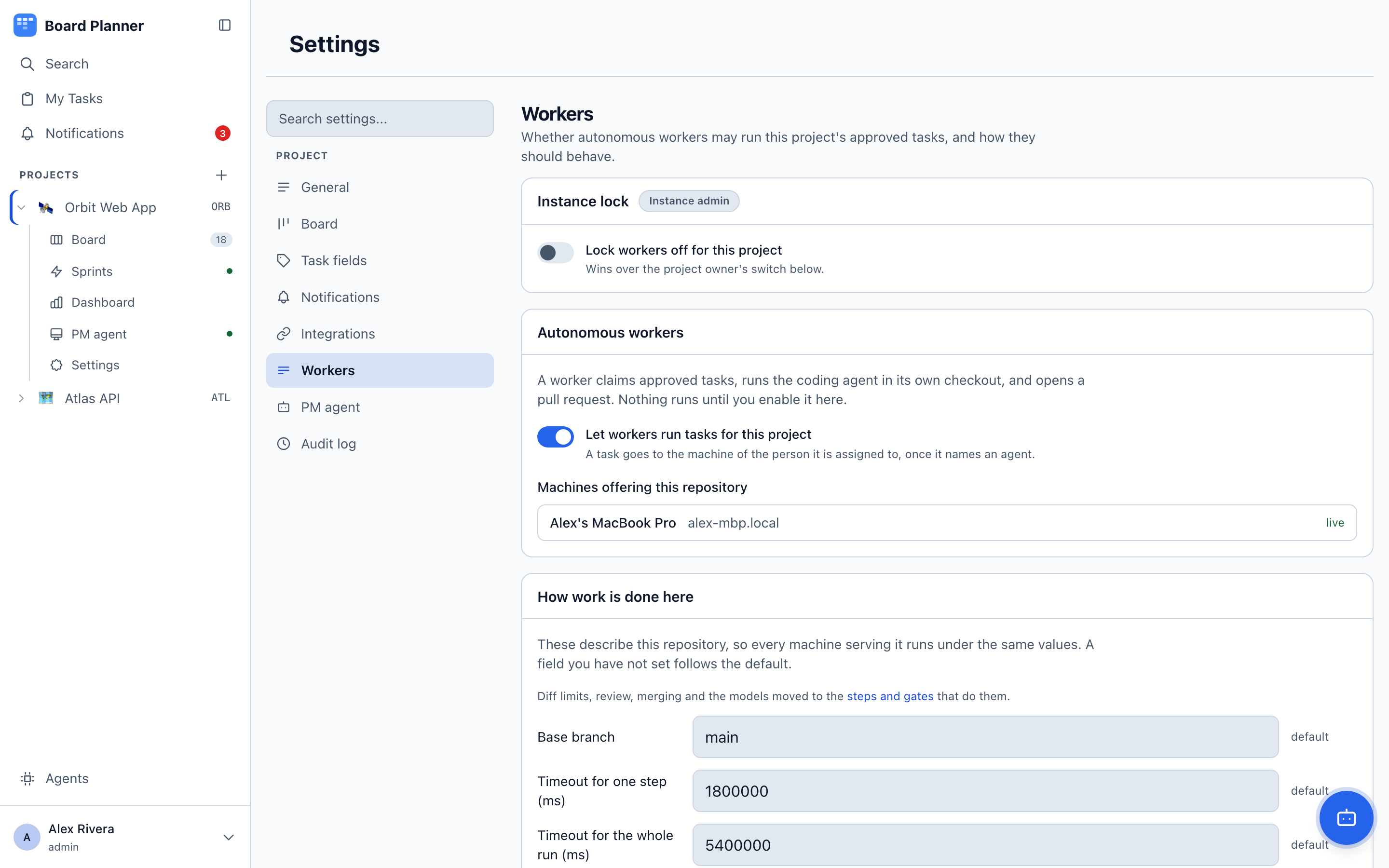
Section titled “Turning it on for a project”Open Project settings → Workers. It is the project owner’s section: an owner switches workers on without asking an instance administrator. The project must already name its repository under Integrations; without one there is nothing to match a machine against, and the page says so.
Machines offering this repository, shown to instance administrators, lists every worker that reported a matching checkout, as live, not reporting, or — from 1.1.2 — cannot use its checkout with the worker’s reason under it. A machine appears there because it said it has the repository — not because anyone pointed it at a directory. Turn on Let workers run tasks for this project and save.
The same page carries what describes the repository rather than any one laptop, so every machine serving the project runs under the same values.
| Setting | Default |
|---|---|
| Base branch | main |
| Timeout for one step | 30 min |
| Timeout for the whole run | 90 min |
How much you trust it is the agent a task runs, not a setting on this page. Merging, reviewing, the models, the diff limits — all of them belong to the blocks that do the thing, where you can see them in order. See Agents.
The page no longer shows the two diff limits. A project that pinned one before agents existed keeps it, as the fallback a Size gate uses when its own block names none.
The two timeouts are different questions. One step bounds a single call to the model. The whole run bounds everything — a composed agent makes several calls, and without a ceiling six steps have no bound at all. The worker clamps that ceiling under its own claim lease whatever the project says, because a run outliving its lease gets the task reclaimed from underneath it.
A setting you have not touched is marked default and follows that value if it ever changes; one you set is marked set and stays where you put it. Reset puts a field back to following the default.
Only how often a machine asks for work — its poll interval, 30 seconds — belongs to the worker rather than the project, and lives in the fleet console.
Which tasks get picked up
Section titled “Which tasks get picked up”A task has to sit in the column whose role is approved — “To Do” on a default board — have fewer than three failed attempts behind it, and have no unfinished blocker. A task waiting on a dependency is left alone until that dependency reaches a done column.
A run needs four roles, not one: approved to take work from, active to move it into, review and done to deliver it to. A board missing any of them refuses the claim outright, naming the role that is missing — in the worker’s log and in the menubar app — rather than leaving a machine that looks idle. Give a column that role in Settings → Board; see Board columns and task fields.
Beyond that, four things have to be true of the task itself, and they are all on the task rather than in a setting:
- It names an agent. Choosing one is the hand-over gesture. A task naming none is one a person is doing, and no machine looks at it.
- It is assigned to the machine’s owner. A machine runs its owner’s work and nobody else’s.
- That person assigned it themselves — or the PM agent assigned it for them. Work a colleague hands you is a proposal; nothing runs it unattended.
- The project is enabled for workers, which is Project settings → Workers and the project owner’s switch — and not locked off by an instance administrator, whose lock wins over it.
The task’s own Agent row lists whichever of these is missing, all at once, along with an unfinished blocker, a board that names no repository, has agent runs off or lacks a column a run needs, and — on your own task — a machine that is missing, silent, paused, stopped or failing its sandbox check. See the Agent row.
A task carrying somebody else’s name is never claimed, so parking work for a colleague in the approved column is always safe.
Claiming does not reassign the task. The claim matched on the assignee and the assigner, so it leaves both exactly as they were — the task stays assigned to the person who handed it over, and that is who you see on it while the run is in flight. Two machines cannot take the same task because the claim is a single atomic write, not because either of them puts its name on it. The machine identity you do see is the author of the comments a run leaves.
When a run ends without finishing — a usage limit, a crash, a timeout, an expired lease, or your stopping it — the task goes back to the board’s approved column — the first one, on a board with two — still assigned to the same person, and is claimable again until its attempts are spent. A gate saying no is different: it sends the task to a review column, as above.
Who the worker is
Section titled “Who the worker is”Each machine gets its own identity, named after whoever enrolled it — Rafał · MacBook. It is what you see as the author of the comments a run leaves, and in the task’s history.
Two machines are two identities on purpose: when something goes wrong the useful question is which machine. These identities do not appear in the user list, in permissions, or in the assignee picker — they are accounts, not people.
That is the board’s identity, not git’s. From 1.1.2, with a GitHub account pinned, a commit carries that account’s name and its GitHub noreply address (<id>+<login>@users.noreply.github.com), asked of GitHub with the account’s own token at the start of each run — so a machine whose own git config holds a work address does not put it into a personal repository. To commit as a different name and address, add both to github.json in the state directory beside the pinned account: { "account": "you", "name": "Your Name", "email": "you@example.com" }. The menubar app keeps them when you pick the same account again. Nothing is written to the checkout’s git config; the identity goes to the commit alone. Preflight names the identity a machine will commit as, and warns when it falls back to the machine’s git config — because GitHub would not say who the pinned account is, or gh holds no token for it — or when that config names nobody, in which case a checkout that sets its own user.name and user.email still works. Workers up to 1.1.1 committed as the machine’s git config whatever was pinned.
With nothing pinned, a commit carries the name and address git is configured with on that machine, read from the checkout itself before the agent starts — so a repository where you keep a different address keeps it. A machine git cannot name an identity for has none to commit under, and git refuses rather than guessing one. The worker asks before the agent starts rather than at the commit, so the run is handed back with its attempt refunded and the machine stops claiming for the rest of that pass — with the reason: either git’s own answer — the file and line it could not parse — or, where nothing is configured, the two commands to run (git config --global user.email and git config --global user.name, in that order) and the address git would otherwise have invented from the machine’s hostname. It tries again a poll later and hands the next task back the same way, so this is one to go and fix rather than wait out.
If it is the checkout rather than the machine — a user.name = "" in that repository’s own config, say — the machine quarantines that checkout instead: the task is handed back untouched, nothing claims against that path again until the config is fixed and the worker restarts, and every other checkout on the machine carries on. Same treatment as a checkout carrying a key git would run, because the file is the same one and every project bound to that path shares it.
Stopping it
Section titled “Stopping it”Settings → Workers → On/Off stops a machine claiming anything new, immediately, whatever any project’s settings say. A run already in flight is told to abort on its next report rather than being left to finish. Nothing on the worker’s own disk can undo it — that is what the credential rules above are for.
Choosing what a machine clones
Section titled “Choosing what a machine clones”Settings → Workers → a machine → Projects is the picker. The fleet console that route starts from is an instance administrator’s, so a machine’s owner opens the same page from the menubar app instead, with Preferences → Repositories → Choose projects…. It lists every project this machine’s owner can reach, with the repository each one names, and a connected marker on the ones it already serves.
Tick a project and the machine sets up a checkout for it. Untick one and the machine is asked to remove the checkout — unticking is a proposal, not the act. Before you save, the page lists by name every checkout that is about to be proposed for removal, and says what happens next:
Saving does not delete anything. The app asks on the machine first, naming every directory it is about to remove, and refuses any checkout with uncommitted changes, unpushed commits, or a task running in it.
The browser never learns a path, and that is deliberate — the app tells it which repositories a machine has, never where they live. So the question that matters, which directory, can only be answered where the answer exists. The app puts it there: a dialog on the machine naming the checkout and every linked worktree that goes with it, immediately before anything is deleted.
Say Keep and nothing is deleted and nothing is given up — the project stays unticked on the board, so the app asks again next time it connects. Say Delete and the guards below are checked once more before it acts, because the question may have sat on screen for a while.
A project that names no repository cannot be ticked at all — the row says so and points at that project’s Integrations settings, because there is nothing for a machine to clone.
A project that has a repository but is not enabled for workers can be ticked, and what that means depends on who you are. The row tells you which case you are in before you save:
- does not run machines yet — ticking it turns that on — the project’s owner, or an instance administrator, ticking it enables workers for that project on save, and the instance audit log records it.
- does not run machines yet, and you cannot turn that on — a member ticking it records the wish. The checkout is set up, the switch stays off, and the reply names the projects it left: the machine will leave them alone until somebody does.
- an instance admin has locked machines off for this project — the project is locked, and nobody can switch it on from here, owner or administrator. Ticking it records the wish the same way, and the reply says the project is locked off by an instance admin. Under the lock the project’s owner can still switch runs off in its Workers settings, but not on.
Saving is picked up by the menubar app the next time it connects to the worker — on app start, on a worker restart, or when a dropped socket comes back — which is when it does the cloning.
Removing a checkout
Section titled “Removing a checkout”Dropping a project in the menubar app can also delete its checkout from disk, which is the one irreversible thing this app does. Two things stand between an untick and a deleted directory: it asks on the machine, naming every path, and it refuses by default — a check it cannot run counts as a no. A directory git will not answer about is not clean, it is unexamined.
It refuses when:
- the worker is running a task — stop it, or wait;
- the path is not a git checkout, or git could not read it;
- the path is inside a checkout rather than being one, which would take part of a repository;
- the path is a linked worktree rather than a repository. Deleting a repository takes its worktrees with it, and this cannot work the other way round. Use Preferences → Repositories → Remove, which gives up the grant and deletes nothing;
- there are uncommitted changes, stashed changes, or commits on no remote — in the checkout or in any of its worktrees;
- there is a separate git repository inside it that git was ignoring, holding work that is on no remote. A
vendor/you cloned and forgot is exactly this shape.
To give up a project without touching the disk, untick it on the board first, then remove the repository under Preferences → Repositories. That drops the grant and leaves every file where it is.
The order matters, because removing the repository while the project is still ticked does not last. The grant goes and the directory stays, so the machine stops reporting a checkout of that repository — and the next time the app connects, a still-wanted project with no checkout is one it sets up. It finds the directory already there, adopts it, and puts the grant straight back. Nothing was given up.
A checkout you added by hand somewhere of your own choosing is the one case that ends differently: the app looks in its own checkouts folder, finds nothing, and clones a fresh copy there. Yours is left alone, and the machine now has two.
Every clone, refusal, decline and deletion is written as its own line in Preferences → Repositories. A clone takes minutes and a deletion cannot be undone, so neither happens behind a single spinner.
Why this is safe to run
Section titled “Why this is safe to run”-
The shipped Default agent merges nothing. It stops at the pull request, and a task runs only the agent somebody chose for it. An agent that merges without a review is composable, and the editor marks it as risky rather than refusing it — the judgement is yours, and it is visible in the sequence.
-
Nothing executes before Protected files has read the change. The editor refuses to save an agent that runs the build or the suite over a change no Protected files gate has seen, and installs run with lifecycle scripts disabled.
-
The agent has no shell. The step that writes the change gets read, edit and write, and nothing else; the worker makes the commit itself.
-
The agent’s own writes cannot leave its worktree. Both calls to the agent — the step that writes the change and the review gate — run inside a sandbox that allows writes to exactly one directory. It is the operating system refusing, so it holds for a file written by absolute path, for a symlink planted inside the worktree that points out of it, and for a process the agent starts writing a file itself. Without it, a step could leave a hook in your home directory that ran on the next agent in the same sequence, in a file no diff and no gate would ever see. macOS only, and a machine without it refuses the step rather than running it unconfined — see Running the agent unconfined.
The gates are inside it too.
npm ci,npm run buildandnpm testrun agent-written code — a test file is exactly what a step is asked to write — so each of them runs under the same sandbox, with the worktree and a scratch directory of its own and nothing else. The install also gets a cache of its own — one per account, shared by any worker you run as the same user, never your~/.npm. A machine that cannot confine refuses the gate rather than running it unconfined.A write a system service performs on a process’s behalf used to get out this way:
defaults writehands a setting to macOS’s preferences daemon, which runs outside the sandbox and wrote the file on the process’s behalf. The sandbox now refuses that daemon, so the same command writes nothing. What it costs was measured rather than assumed, because refusing a service is not a write-only refusal:defaults readstill answers, the gates still install, build and test, git still commits, and the agent still runs. A program that reads a setting only through that daemon sees the default instead — for a run, the same answer a fresh account would give. Other system services remain reachable the same way, and no list of their names would be a complete answer.What that still does not cover, because a security claim that overstates itself is worse than none. Reading: the agent runs as your user and can read whatever that user can. The install cache: it is shared between runs on that machine, so a package an agent could get written into it is one a later run installs — npm checks what it installs against the lockfile, which bounds that, and your own cache is out of reach either way.
One more thing worth knowing if you keep Claude Code hooks of your own: the agent still reads your
~/.claude/settings.json, and a hook there that writes anything will now fail while a task runs. Hooks that only read are unaffected. -
No git config makes the worker run anything. Hooks are disabled on every git call it makes, which matters because a worktree shares its
.gitwith the checkout it came from — and a checkout whose config carries a key git would run is refused outright, when it is bound and again before each run. Your own~/.gitconfigis not read either. An agent running unconfined can write to your home directory, so a filter defined there would have run while the worker staged the work with nothing planted in the repository at all; the worker’s git ignores that file, and takes the one thing it genuinely needs from it — your name and address — before the agent starts. That address is what configuration still decides, so a worker’s commit is only as trustworthy as the machine’s own configuration. Two consequences to know about.Your global gitignore no longer applies to what a worker commits — neither the file
core.excludesFilenames nor~/.config/git/ignore, which git reads with no configuration at all. A file on either list is invisible togit statusandgit addalike, which would let a change sit in the worktree unreviewed while the test gate still ran it. So the repository’s own lists — its.gitignore, and the checkout’s.git/info/exclude— are what a machine obeys, and anything they do not name gets committed: a.DS_Store, and — because the gates runnpm ciand the build inside the worktree — anode_modulesor adistthe repository forgot to ignore. Ignore them in the repository if that matters.The worker also never signs a commit. Signing means running a program the checkout gets to name, so it is turned off on the worker’s own commits and pushes — a branch that requires signed commits will reject what a worker pushes.
-
No subprocess inherits the worker’s secrets. The child environment is an allowlist, so neither token reaches the agent or any dependency’s install script.
-
The machine decides where anything runs. The app can name a repository; only
repos.jsoncan name a directory. -
Nothing can hide from the gates. The worktree is checked for uncommitted files before the gates run, so an agent cannot dodge review by never staging a change.
-
A file git will not print is not reviewed as if it were. A few things take a file’s contents out of a patch — a binary file, an image, a
.gitattributesrule, a submodule pointer — and the review gate is told, in as many words, which files it is not being shown, so it can decline if their contents would matter. Protected files refuses a submodule pointer: its whole change is two object ids, in a repository the gates never fetch, so nobody — a model or a person reading the pull request — can say what it now brings in. -
A refusal does not delete the evidence. When the worker refuses to stage because the checkout was tampered with mid-run, the task is parked rather than requeued, and the worktree is kept with the comment naming both the key that was found and the directory it is in. An ordinary commit failure requeues the task instead, and the worktree survives only until the next attempt rebuilds it — the comment says so, and says where to look in the meantime.
-
A rejected branch is never lost. It is pushed before its worktree is discarded — except after a Protected files rejection, where the change goes on the task instead for you to accept or decline, because pushing is the thing that gate refused.
-
A missing check is never silent. An agent naming a gate the machine does not implement stops the run and says so, rather than skipping it.
-
Abandoned worktrees are reaped — but only the worker’s own, under its own directory. Your checkout and your worktrees are left alone. One exception: a worktree holding a change somebody is being asked to accept is kept until they answer, however long that takes.
One worker process can serve several projects at once: every project that is enabled and whose repository it reports a checkout of. Two worker processes on one machine will never be given the same checkout — the one that registered first keeps it, and the other is told which machine holds it.