My tasks and notifications
Two personal views, both in the sidebar, both spanning every project you can see.
My tasks
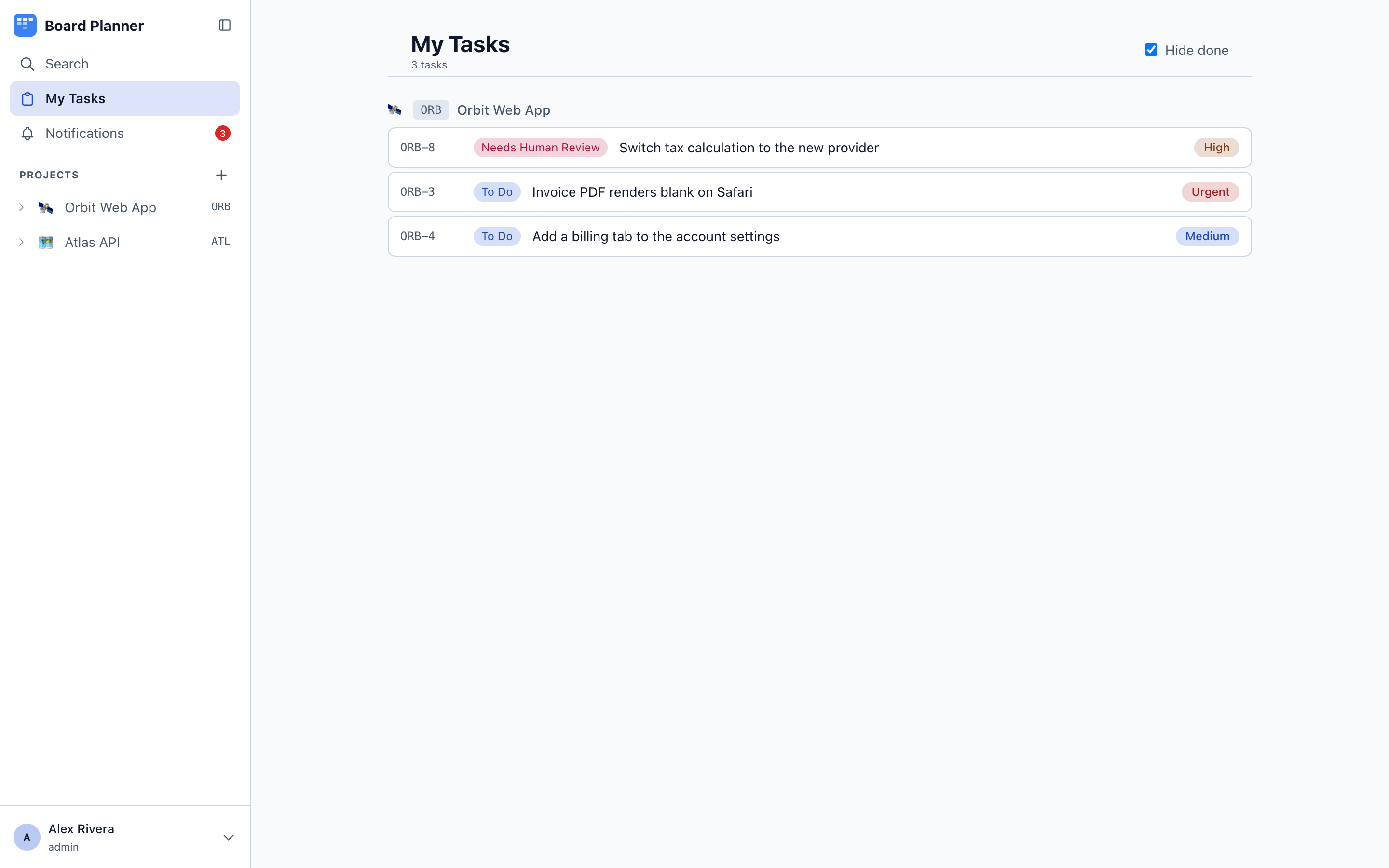
Section titled “My tasks”Everything assigned to you across all projects, so you do not have to open each board to find your work.
Tasks are grouped by project and, within a group, ordered by what their column means rather than by what it is called — what you are working on first: active, then blocked, review, approved, backlog, and done last. A board that renamed its columns therefore still orders correctly, and a column with a role the list does not know sorts last.
Hide done is on by default and keeps finished work out of the way; it too goes by the column’s role, so a board whose done column is called Shipped is handled correctly.
A task whose board has been deleted is dropped rather than shown: such a row cannot be grouped, named or linked to. If the page fails to load it says so, rather than showing you an empty list that reads as “nothing assigned to you”.
Notifications
Section titled “Notifications”The bell keeps an unread count. Notifications are raised when:
- a task is assigned to you,
- a task you watch changes status,
- someone comments on a task you watch,
- someone @mentions you in a comment,
- a task you watch is linked to another task, or a link is taken off it,
- you are added to a board, or your level on one (member or owner) is changed,
- anybody creates a task on a board you asked to hear about.
The first five reach you because you are already attached to the task — you are its assignee, or you watch it.
Being added to a board is about the board, not a task. It reaches only the person whose access changed, names who changed it and to what, and opens the board — in the bell, the e-mail and the chat message alike. Like the first five it lights the bell unless you untick it. Being removed from a board sends nothing.
A new task on a board works differently from all the others. Nobody is attached to a task that has just been created, so that row is a subscription to the board rather than to any task: it is off until you tick it, and ticking it is the whole of what puts you on the list. You will find it at the bottom of the grid under Settings → Notifications, and in any project’s own settings under Notifications if you want it for one board only.
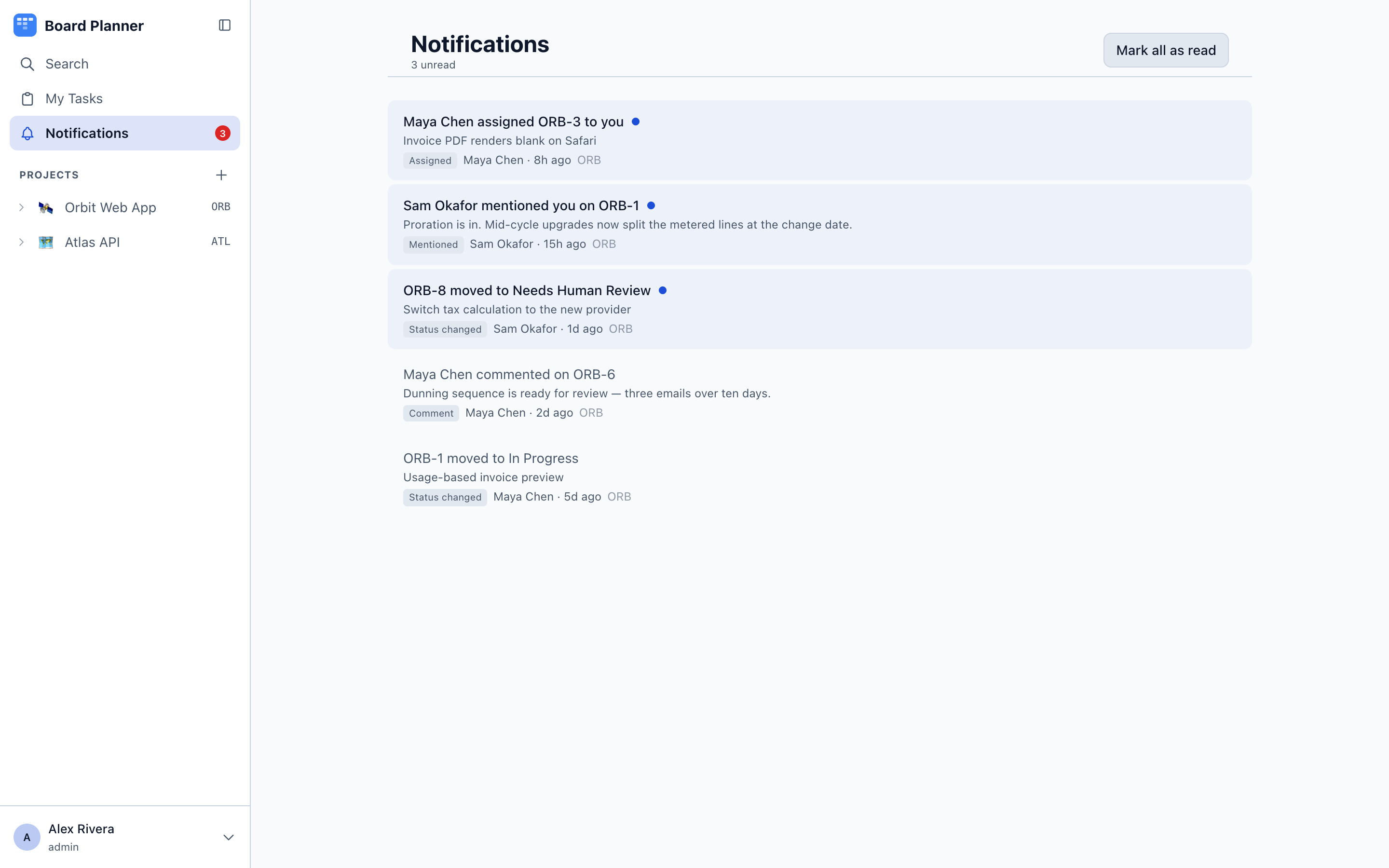
Marking notifications read clears the badge.
Choosing where each one reaches you
Section titled “Choosing where each one reaches you”Settings → Notifications is a grid: the seven events above down the side, and three places across the top — In app, E-mail and Chat. Tick the cells you want. Nothing is all-or-nothing: a mention can reach your inbox while a status change only lights the bell.
Chat is a webhook of your own — a Slack or Discord address you connect at the bottom of the same page, for the messages addressed to you. Until you connect one the column is headed not connected and its cells do nothing. It is not the same thing as a project’s shared team channel, which is set up under that project’s Integrations, goes to everyone, and is unaffected by anything here.
E-mail needs SMTP configured on the instance; without it the column does nothing.
What you set here applies everywhere. A project can depart from it: open Settings → Notifications on that project and tick Use my own settings for this project, and its grid takes over for that board alone. Untick it and the board follows your global grid again — the page says Following your global notification settings when it does — rather than falling silent. The grid there is personal: each member has their own, and it is not something a project owner sets for the team.
Unticking In app stops the bell showing the row; the notification is still recorded, because the daily digest is built from those records.
The daily digest
Section titled “The daily digest”Collect the e-mail column into one daily digest turns the mail from one message per event into one message each morning, listing what you have not read yet. It is off until you tick it.
- It goes out at 07:00 by default. The hour and the timezone are instance-wide settings (
DIGEST_HOUR,DIGEST_TIMEZONE), not per person — ask whoever runs the instance if it arrives at an unhelpful time. - It lists up to 25 rows and then says how many more there are.
- Password and account-security notices go out on their own path and are never held back for it.
- If the instance has no SMTP configured, there is no digest — the scheduler does not start at all.
- If the mail server refuses it, the digest is tried again for up to an hour rather than lost for the day, so a server that was down for a few minutes costs you nothing. An address it keeps refusing waits until tomorrow, and the instance log says whose digest it was. The trade for not losing it is that a message a server accepted but failed to confirm can arrive twice.